Client Content
A forum is a platform for users to discuss, communicate, and collaborate, keeping discussions within the job. A job can contain one or more forums, all of which are displayed under the Forums tab. Each forum is broken down into user-defined categories under which topics can be posted for discussion.
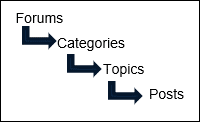
The topic posts can contain files, images, hyperlinks, or 12d Synergy links for reference.
The categories discussed here, in forums, have no relation to the Job categories.
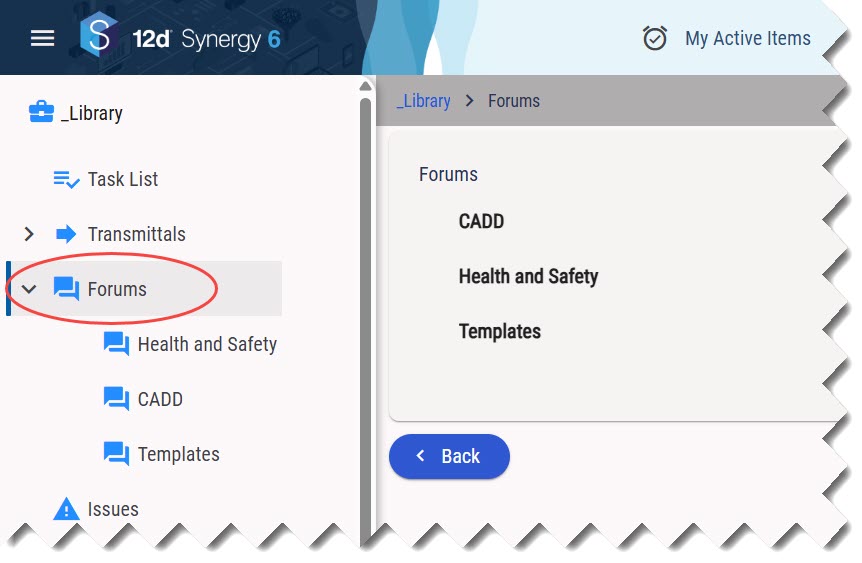
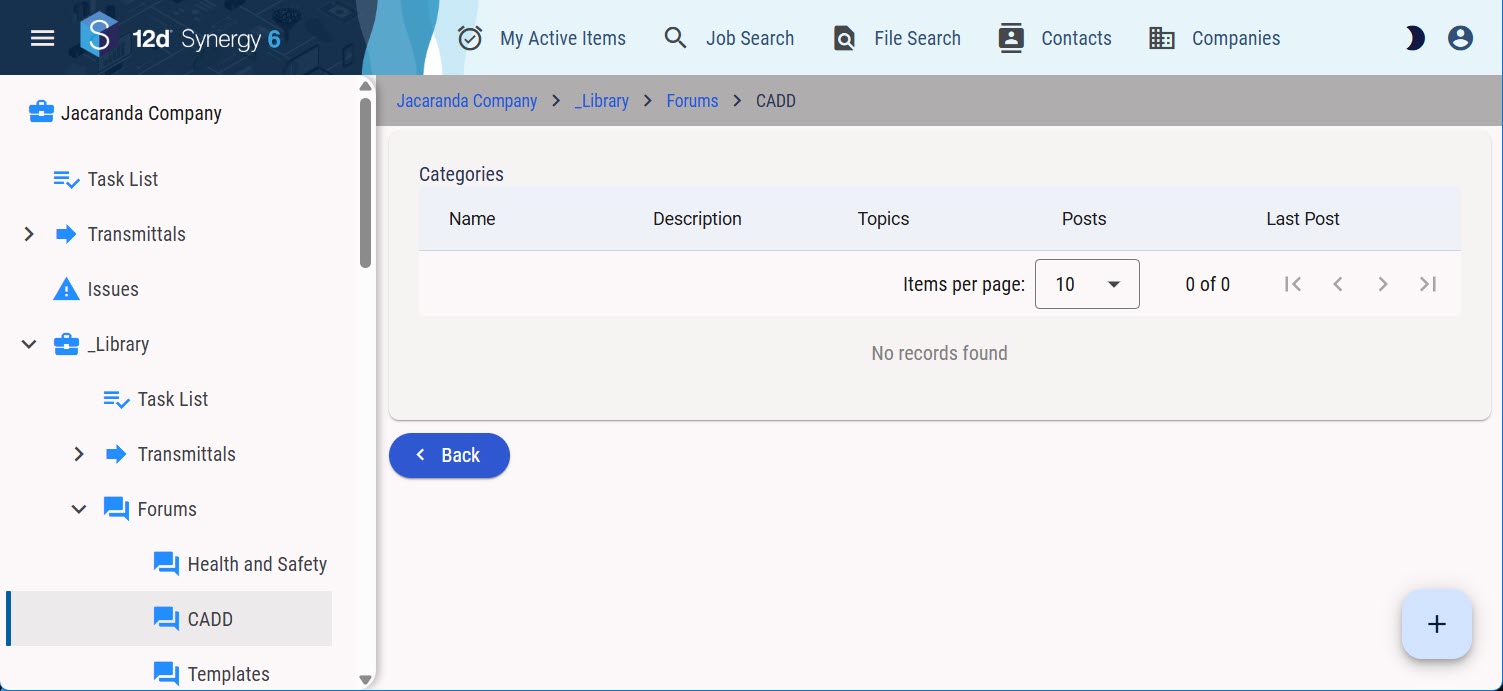
The Forums tab is displayed in the job tree structure only when at least one forum exists in the project. In the image below, the Forums tab is highlighted in red, and CADD, Health and Safety and Templates are different forums created by your 12d Synergy Administrator or Job Administrator. Only they have the permissions to create forums.
You can access a forum in different capacities only if your 12d Synergy Administrator has added you to it and has granted the applicable explicit permissions from the list below.
View
Write
Can read forums and categories?
Can write to forums and categories?
Can moderate forums and categories?
1.1. How to Create a New Category
Client Content
The Forums tab is displayed in the job tree structure only when at least one forum exists in the project.
In the job tree, click the Forums link.
If any forums are created, they are displayed. In the image below, the Forums tab is highlighted in red, and CADD, Health and Safety and Templates are different forums created by your 12d Synergy Administrator or Job Administrator.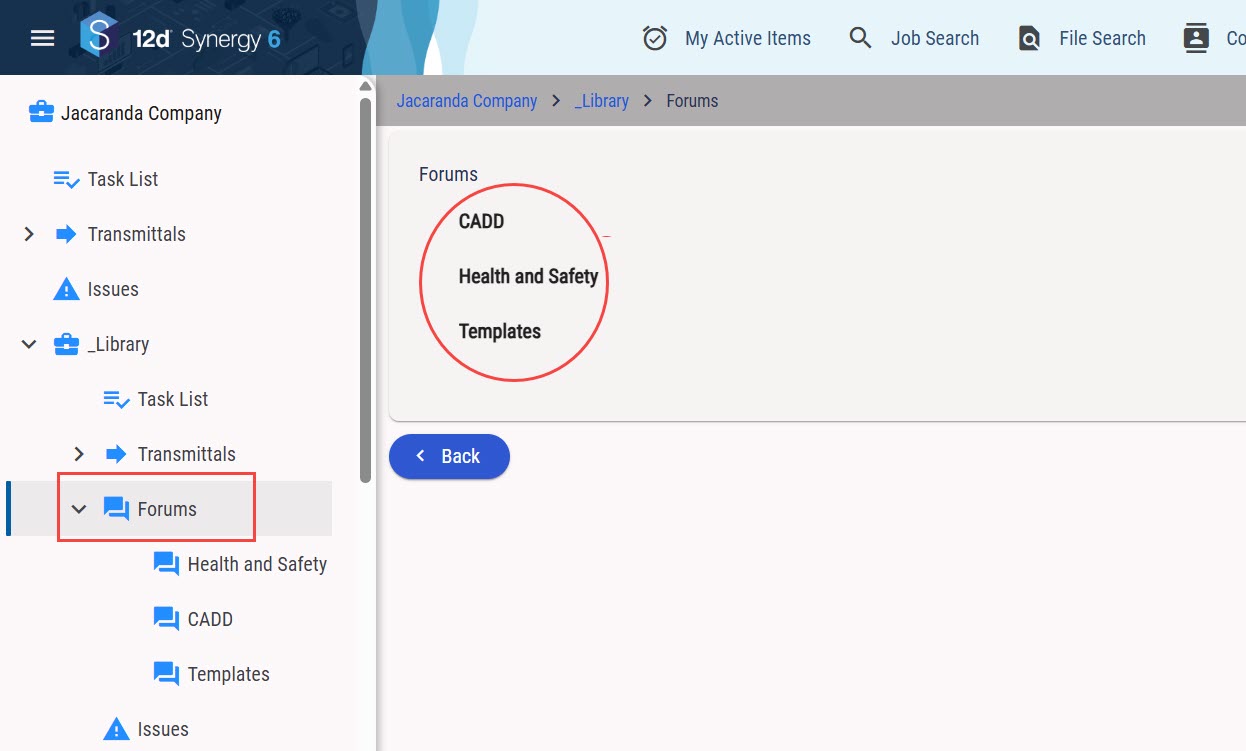
Click the forum for which you want to create a category.
Click the Add
 icon button in the bottom-right of the page.
The Add a New Category window is displayed..jpg)
Enter the name for the category in the Name box.
Enter a description for the category in the Description box.
Click the Save button.
The new category is created and is displayed..jpg)
1.2. How to Create a New Topic
Under each defined category, different topics can be created for discussion.
In the Categories panel, click the name of the category under which you want to create a topic. In the image below, Drawings is a category we created.
The Topics panel is displayed.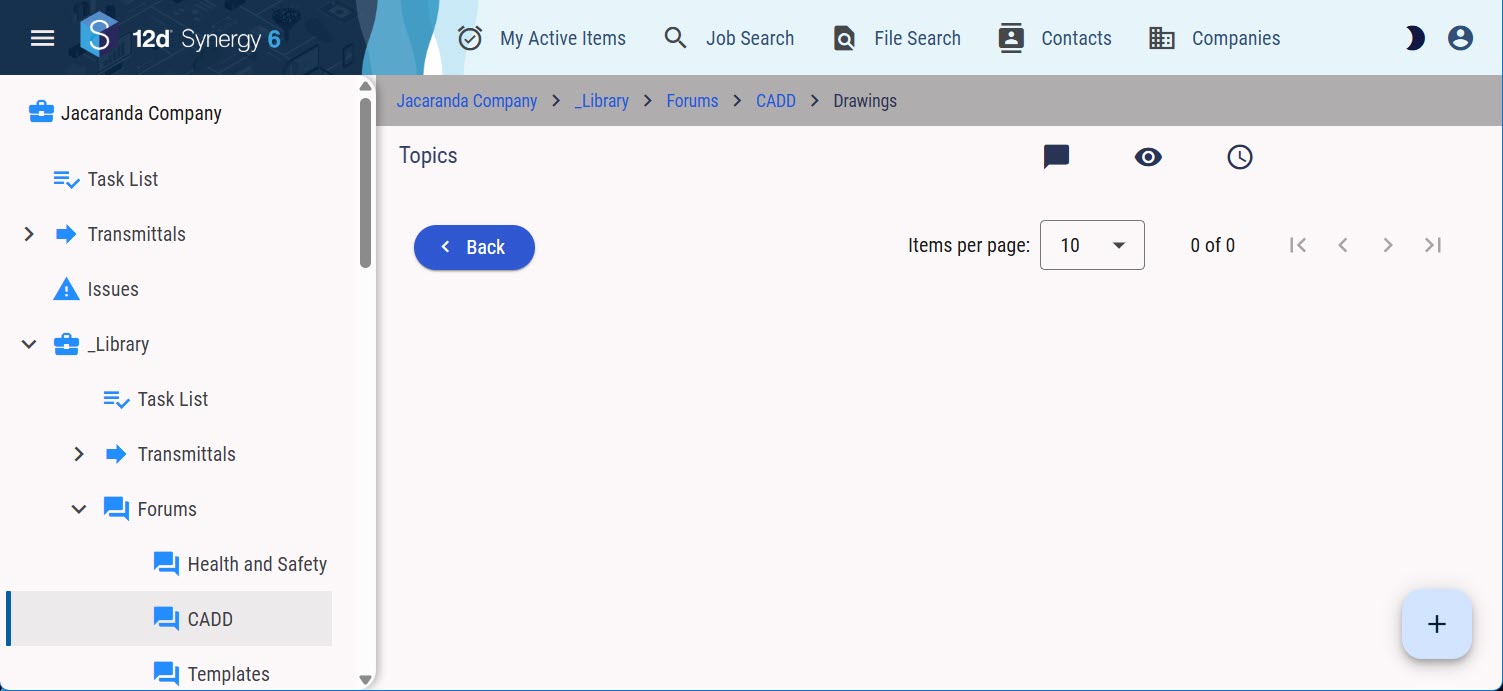
Click the Add
.jpg) icon button in the bottom-right of the page.
icon button in the bottom-right of the page.
The Add a Topic window is displayed.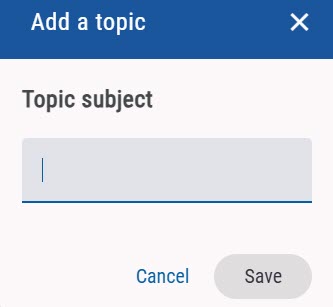
Enter the name of the topic in the Topic Subject box.
Click the Save button.
The new topic is created and displayed in the list of topics for the selected category.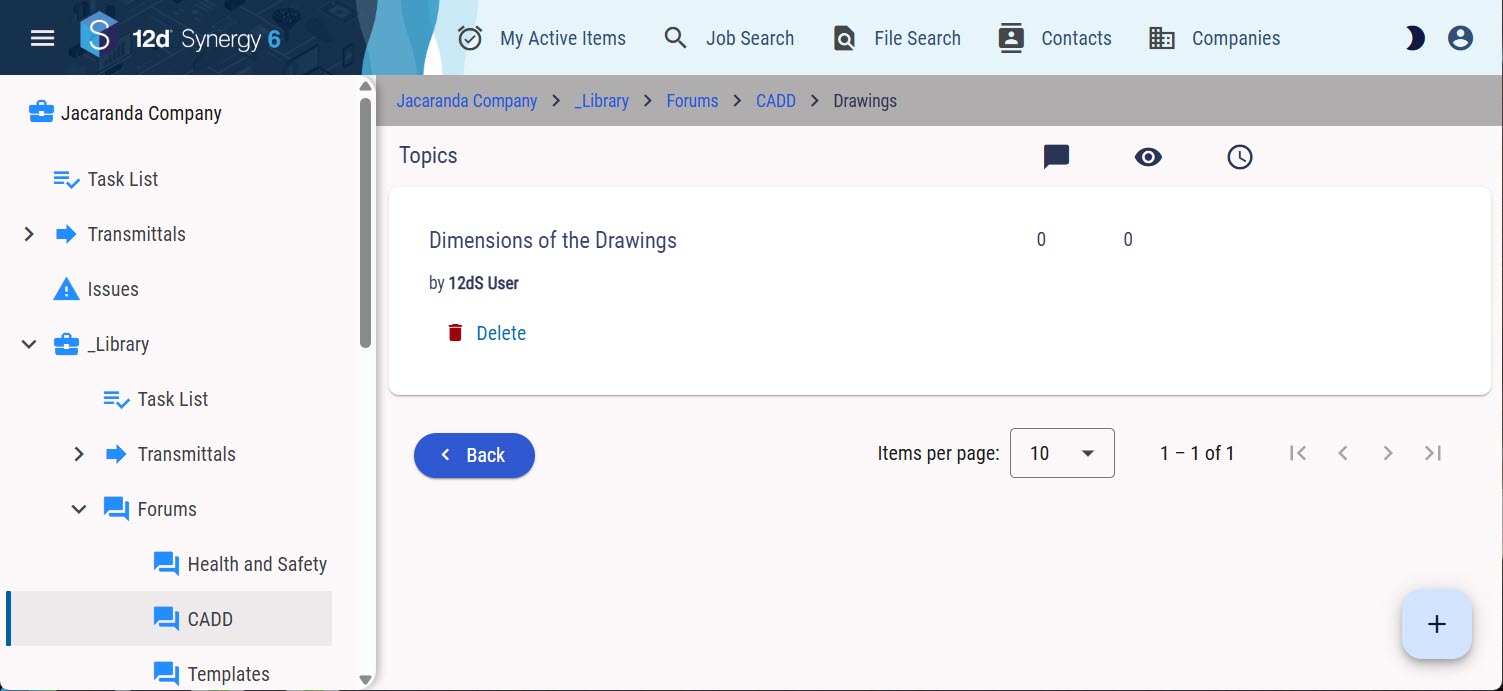
You can delete a topic by clicking the Delete
 button in the toolbar.
 These details under these icons
 display the total posts, number of views and last updated details, respectively.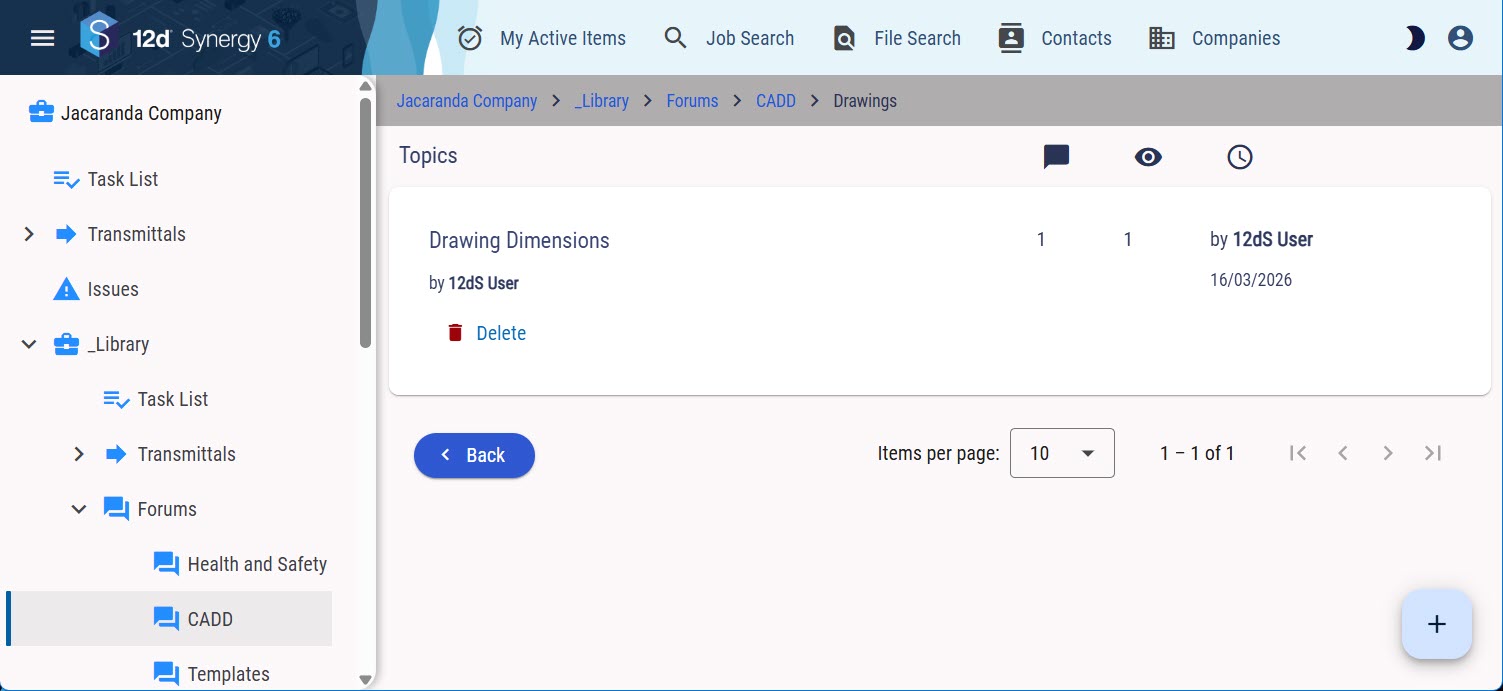
1.3. How to Create a New Post
Creating a new post and responding to a post are the same process.
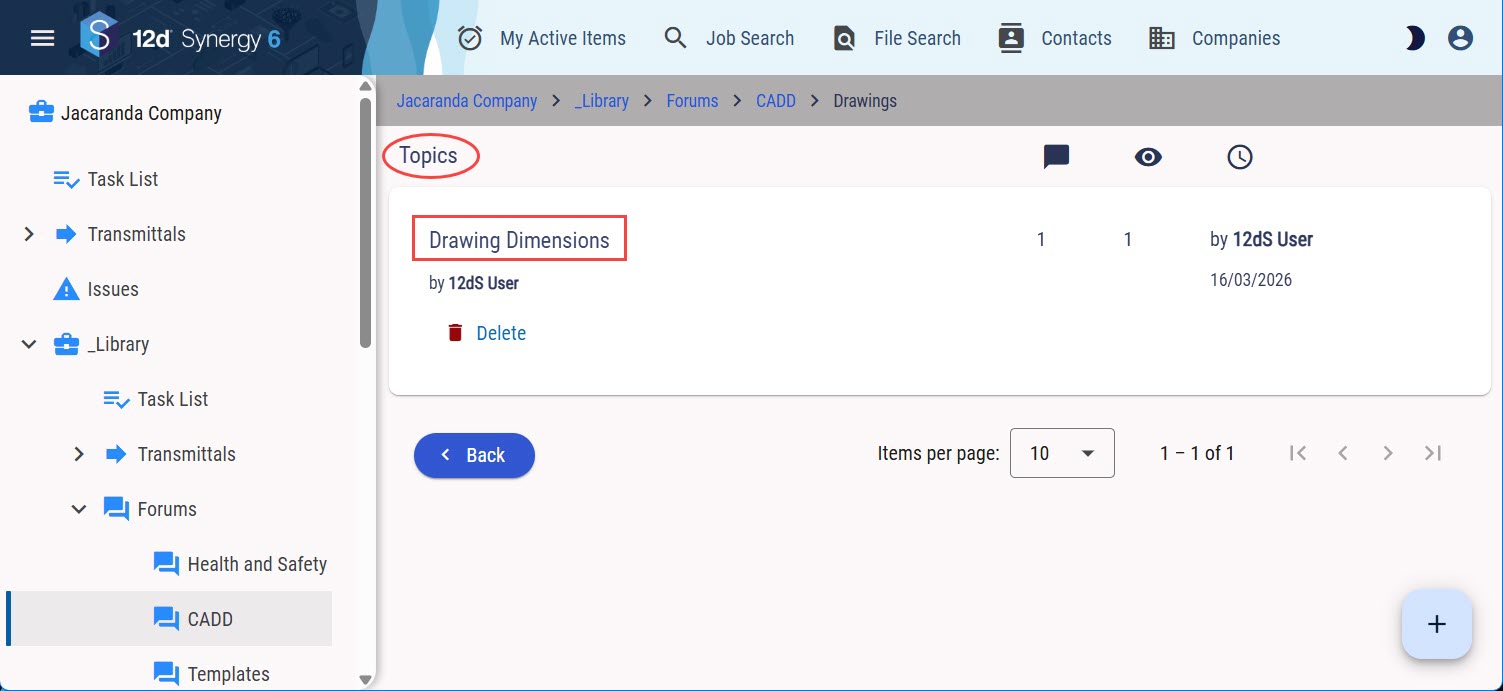
In the Topics panel, click the name of the topic under which you want to create a post or respond to an existing post. In the image below, Drawing Dimensions is a topic we created.
Click the Add
icon button in the bottom-right of the page.
The Add a Post window is displayed.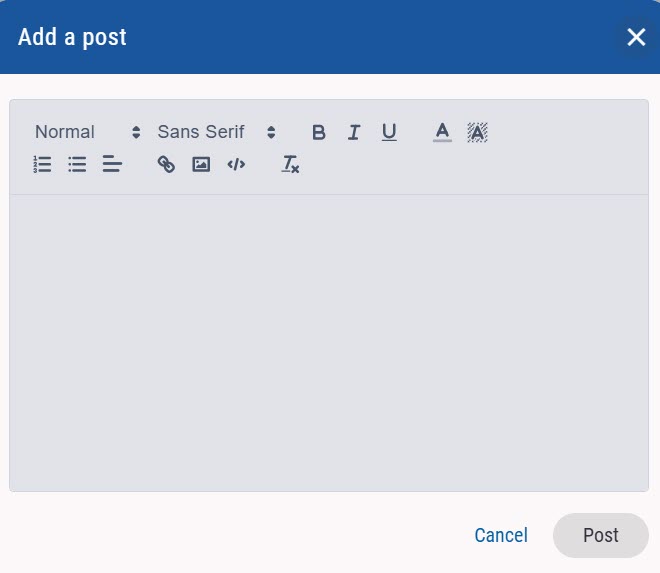
Enter the content of the post in the text editor and click the Post button.
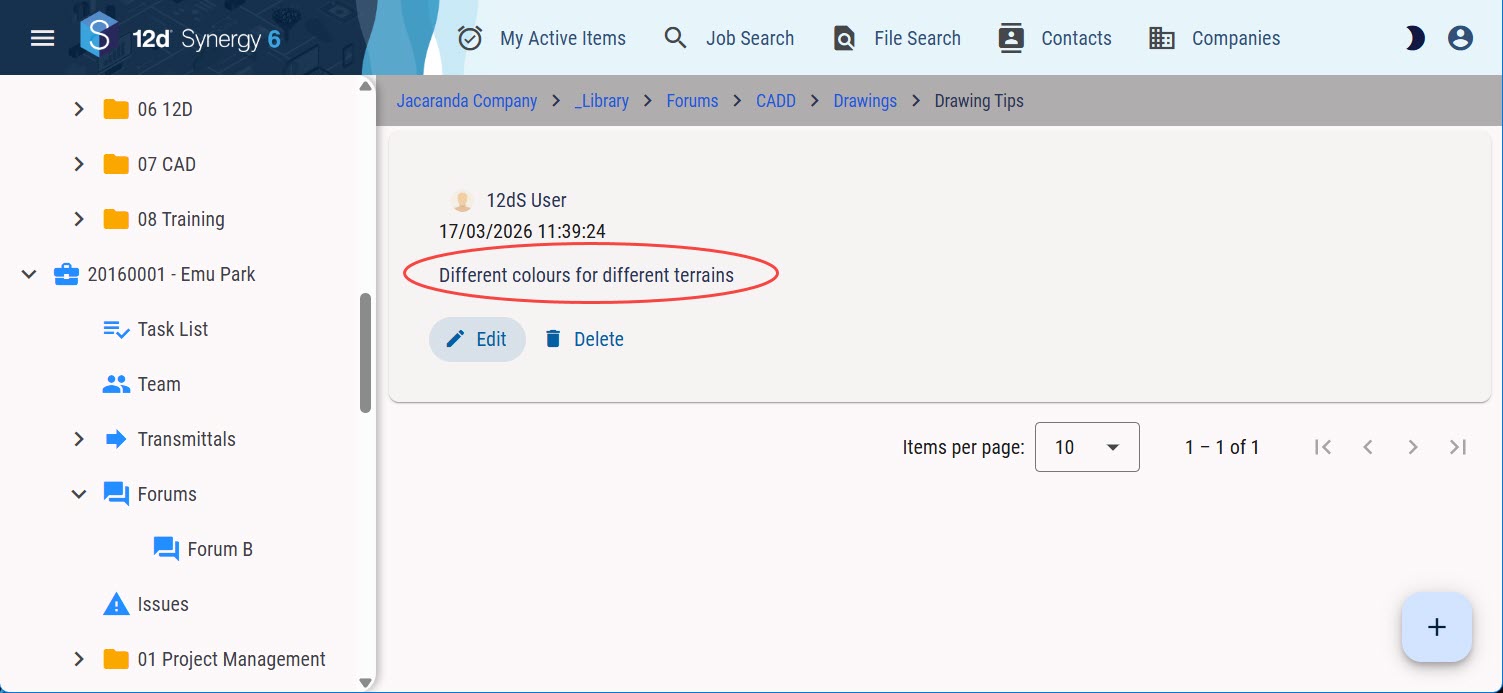
The post is created and listed.