Client Content
This feature is available in 12d Synergy version 5.1.7.413 and later. Please check with your Account Manager for more details.
You can now have collaborative sessions in Microsoft 365 Word and Excel with other 12d Synergy users and with contacts outside 12d Synergy. As a 12d Synergy user, you can initiate and close a collaborative session using the 12d Synergy Web application. If another 12d Synergy user initiates a session, you can choose to join the session, provided you have the necessary access rights for that session. If not, you can contact the owner of that session and request access.
This feature does not work with the 12d Synergy Mobile app.
Please read the administrative settings required for this feature to work. This includes setting up either single-tenancy or multi-tenancy, too.
1.1. How to Initiate a Collaborative Session
In the 12d Synergy Web application, access the folder that has the necessary Microsoft files that you want to work on collaboratively.
Do one of the following:
Click the vertical ellipsis
 button displayed beside the Microsoft Word or Excel (.docx, .doc, .xlsx, or .xls) file that you want to work on collaboratively and select the MS 365 > Check Out and Edit in Microsoft 365 option.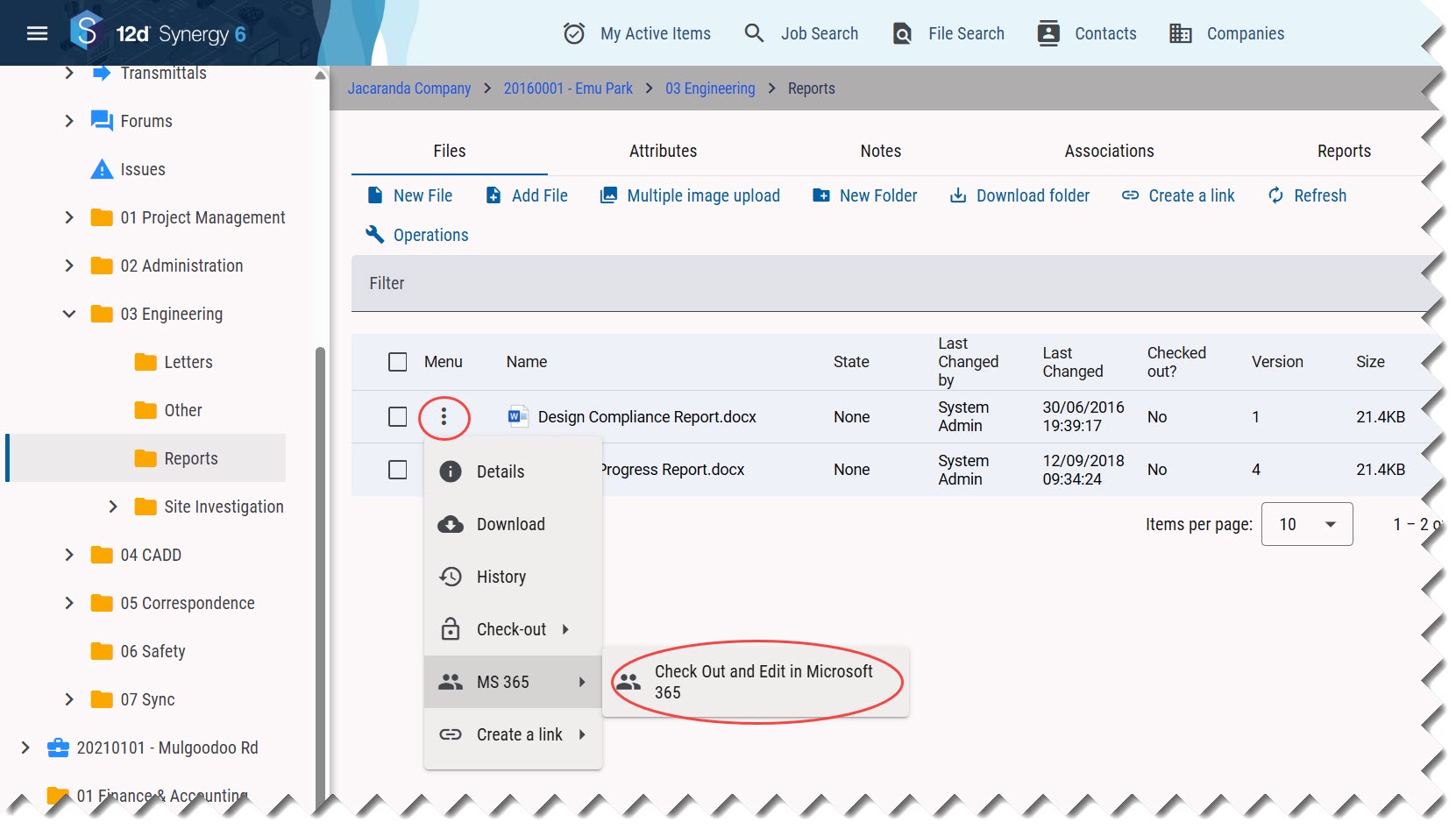
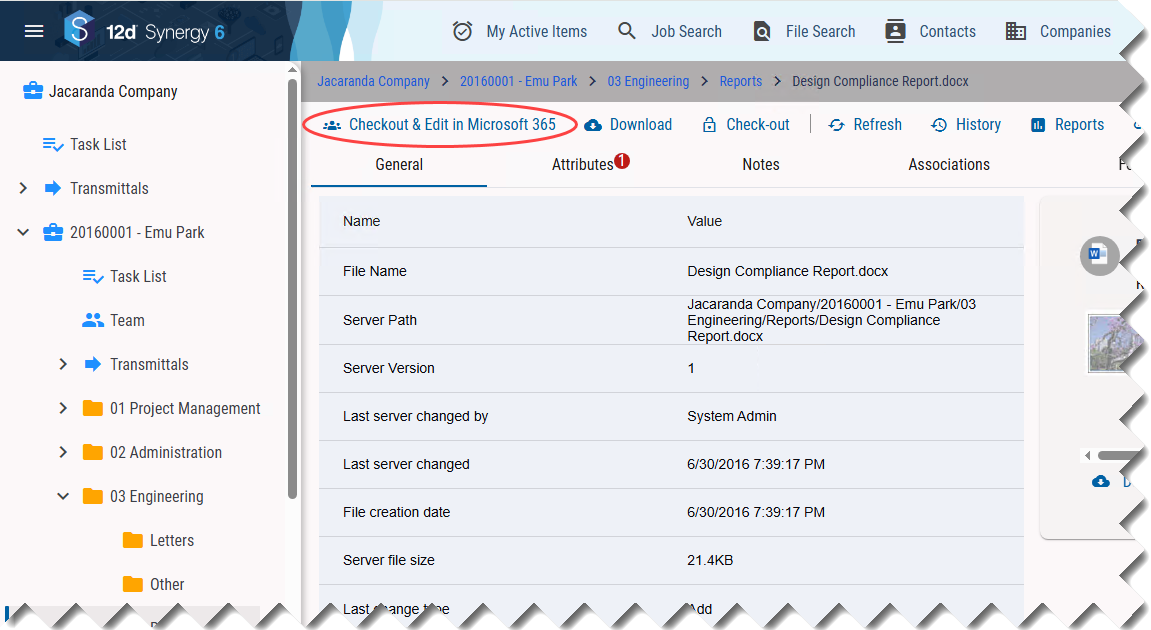
Click the file and in the file view, click the Check-out & Edit in Microsoft 365 option to check out the file for editing in the Microsoft 365 application.
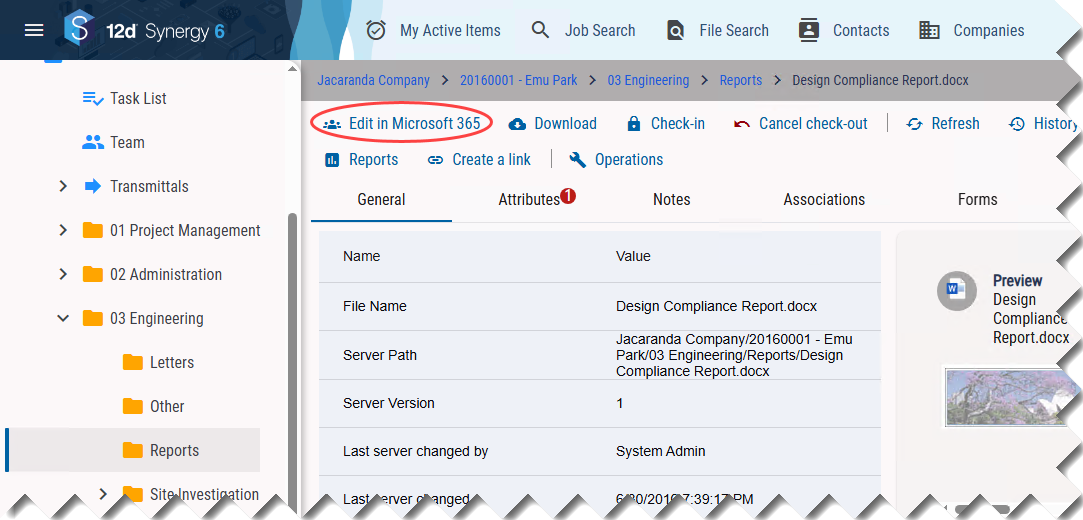
Check out a file using any checkout option, then click the Edit in Microsoft 365 option in the file view.
This option is available only when a file is checked out.
In the Start a collaborative session prompt, do the following:
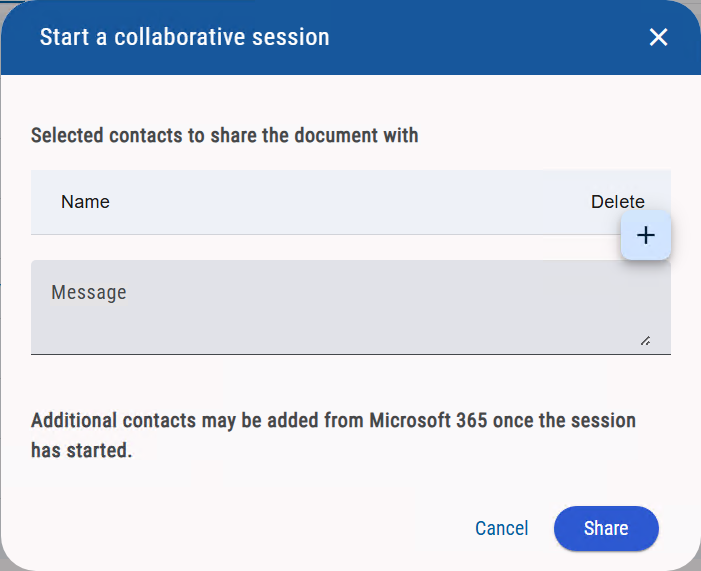
Click the
.png) icon and add the required 12d Synergy contacts or team to invite them to edit the file collaboratively.
icon and add the required 12d Synergy contacts or team to invite them to edit the file collaboratively.Enter an optional message for the invitees in the Message box.
Click the Share button.
An email is sent to all the selected 12d Synergy contacts inviting them to collaboratively edit the file.
You are prompted to sign in to your Microsoft 365 account on a web browser to start the collaborative session.If you want to add more contacts to a collaborative session, then select one of the following options:
The Microsoft 365 Session > Add Contacts to Microsoft 365 Session option in the file view, as shown below.
.png)
In the Folder view, click the vertical ellipsis
button displayed beside the checked out Microsoft file and select the MS 365 > Add Contacts to Microsoft 365 Session option.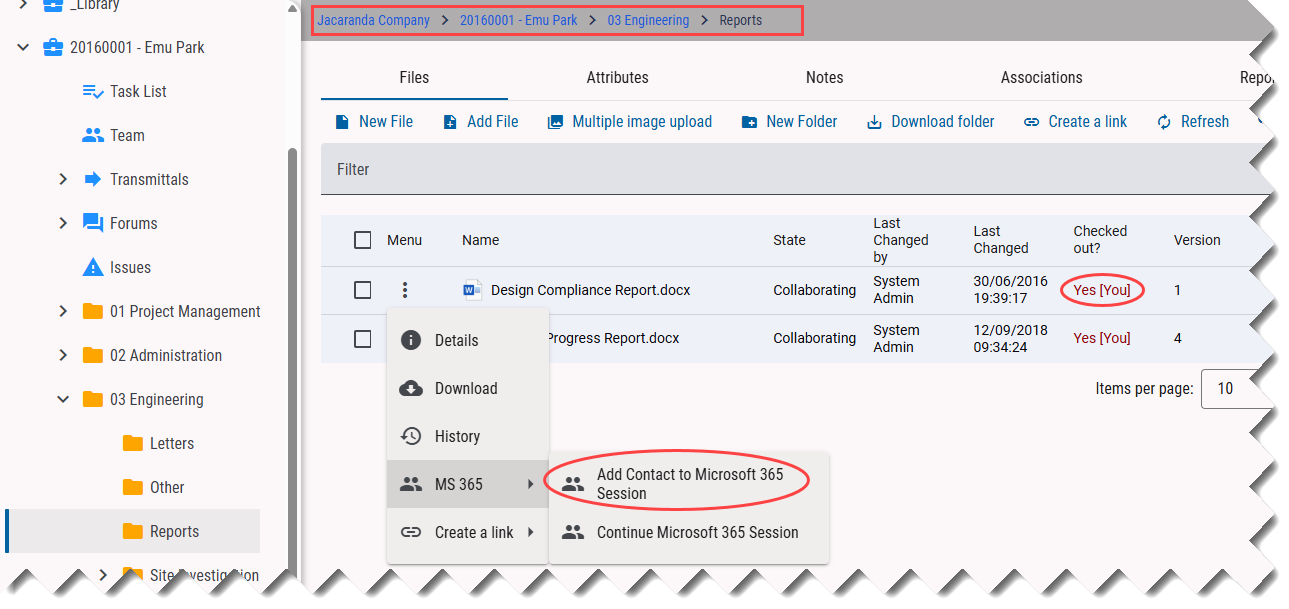
As a feature of Microsoft 365, you can add non-12d Synergy users (external contacts) to edit the file collaboratively from Microsoft 365.
.png)
Log in to Microsoft 365 with your credentials.
Once the authentication is done, the following prompt is displayed.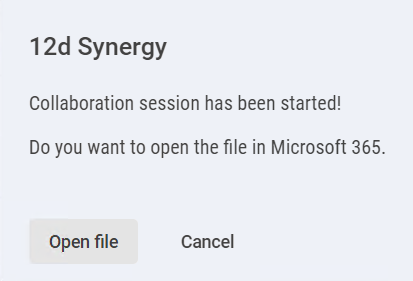
Click the Open file button.
The selected Microsoft Word or Excel file is displayed in the web browser and is now open for collaborative editing. As a feature of Microsoft 365, you can invite additional contacts to edit the file collaboratively.
The file’s status is shown as “Collaborating” in the Folder view application.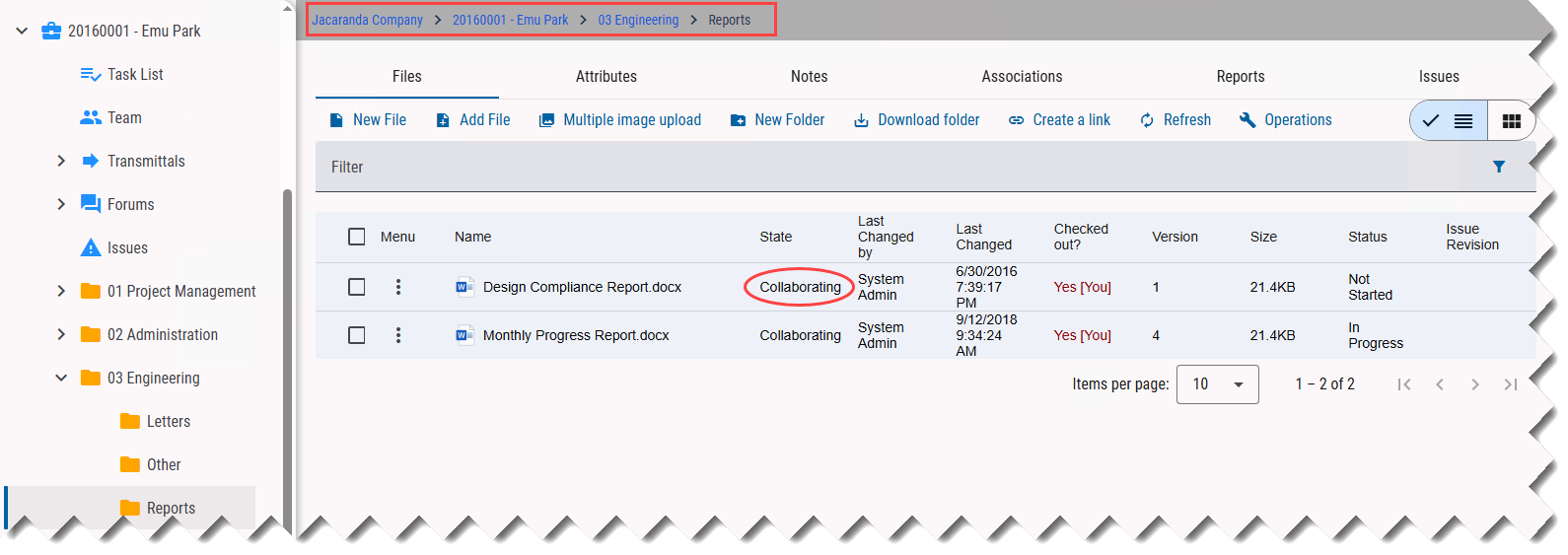
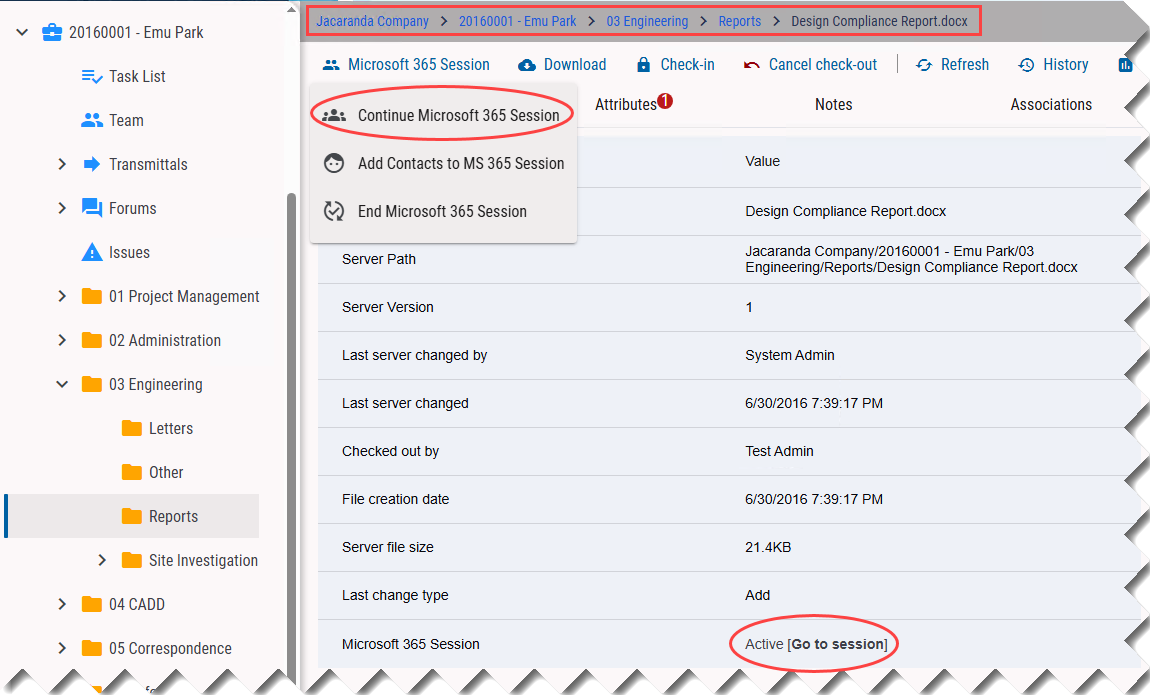
If you want to continue working on a file you previously started but closed, say at the end of the day, you can return to it using one of these options.
Use the link in the invite email that you received when the file was shared with you for collaborative editing.
File view > Microsoft 365 Session > Continue Microsoft 365 Session
File view > Active [Go to Session] link in the Microsoft 365 Session row
Folder view > vertical ellipsis
button displayed beside the checked out Microsoft file > MS 365 > Continue Microsoft 365 Session option.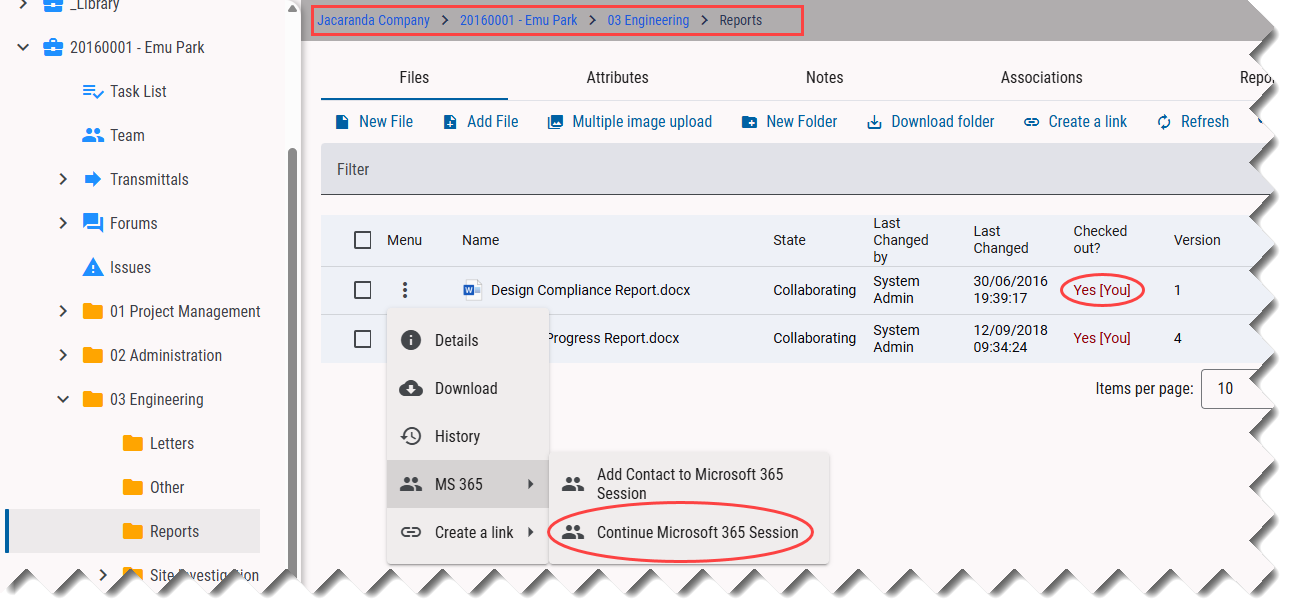
Note that while the file is closed on your end, other collaborative users can continue editing it.
1.2. How to End a Collaborative Session
In the 12d Synergy Web application, select the checked-out Microsoft Word or Excel (.docx, .doc, .xlsx, or .xls) file that is open for collaborative editing.
Select the Microsoft 365 Session > End Microsoft 365 Session option.
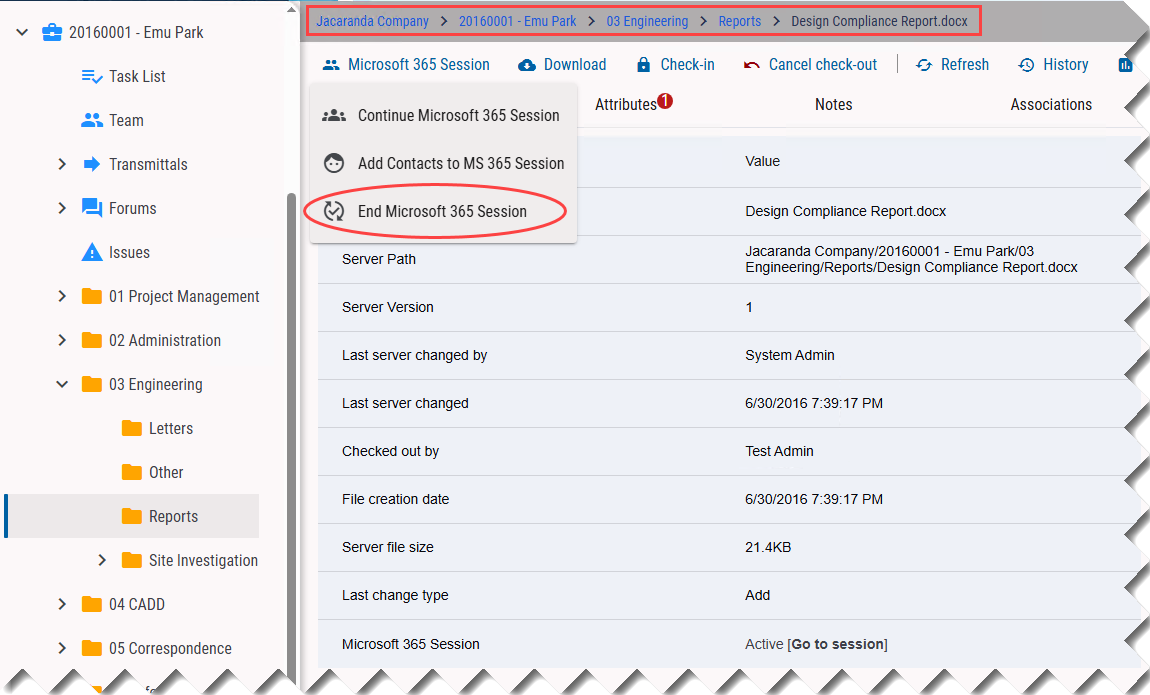
The file must be checked out for you to end the collaborative session. You cannot check in a file that is open for collaborative editing.
The following prompt is displayed.
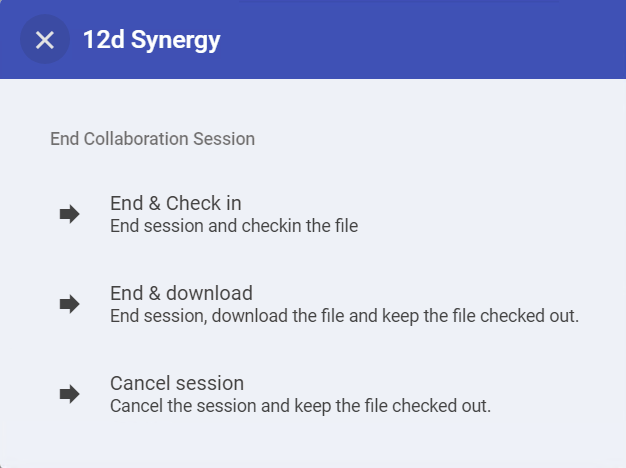
Do one of the following:
Select the End & Check in option to replace the local copy with the updated copy (that is edited collaboratively) of the file. Then the file is also checked into the 12d Synergy application, and the session is ended.
Once a session is closed, none of the invited contacts can access or see the updated file.
Select the End & Download option to download the updated copy (that is edited collaboratively) of the file into your system’s Downloads folder. The session is then ended.
Once a session is closed, none of the invited contacts can access or see the updated file.
When this option is used, the file is not checked into the 12d Synergy application. You can start another collaborative session on the same file.
Select the Cancel Session option to close the collaborative session. A prompt, warning you that all changes made to the Microsoft 365 file (being edited by invitees) are lost when you select this option, is displayed. Click Yes to cancel and end the session.
When you cancel a session, the local copy of the file does not include any changes (saved or unsaved) made by any users editing the file. The file is not checked in.
Note that when you select any of the three options mentioned above, you will be authenticated as a valid Microsoft 365 user before completing or cancelling any session.
When you select the End & Check in or End & Download options while one or more users are still working on the file, then the following warning message is displayed.
It is highly recommended that you do NOT click the Yes button until all users have completed their updates and closed the file in their browser. Otherwise, any changes made within the last minute may not get saved.
.png "warning(3).png")
1.3. How to Join a Running Collaborative Session
The collaborative session for the file must be in progress for you to join it.
To join a running collaborative session, you (as a 12d Synergy user) must have read rights to the job that contains the file being edited collaboratively.
In the 12d Synergy Web application, select the Microsoft Word or Excel (.docx, .doc, .xlsx, or .xls) file checked out by another user for collaborative editing.
Use any of the following options to join the collaborative session:
Use the link in the invite email that you received when the file was shared with you for collaborative editing.
File view > Microsoft 365 Session > Continue Microsoft 365 Session
File view > Active [Go to Session] link in the Microsoft 365 Session row
The following prompt is displayed.
.png "j1(1).png")
Click the Close button.
The file opens in the web browser, and based on your access rights to the Microsoft 365 file, you can view or update it accordingly.