Client Content
A forum is a platform for users to discuss, communicate, and collaborate, keeping discussions within the job. A job can contain one or more forums, each of which is broken down into user-defined categories. Each forum can have one or more categories under which topics can be posted for discussion.
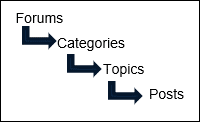
The topic posts can contain files, images, hyperlinks, or 12d Synergy links for reference.
The categories discussed here, in forums, have no relation to the Job categories.
1.1. How to Create a Forum
Admin Content
You can access a forum in different capacities only if your 12d Synergy Administrator has added you to it and has granted the applicable explicit permissions from the list below.
View
Write
Can read forums and categories?
Can write to forums and categories?
Can moderate forums and categories?
The Forums tab is displayed in the job tree structure only when at least one forum exists in the project.
While editing a job in either the 12d Synergy Client or 12d Synergy Administration application, right-click the job for which you want to create a forum and select the Edit option.
The Edit a Job: <job name> window is displayed.
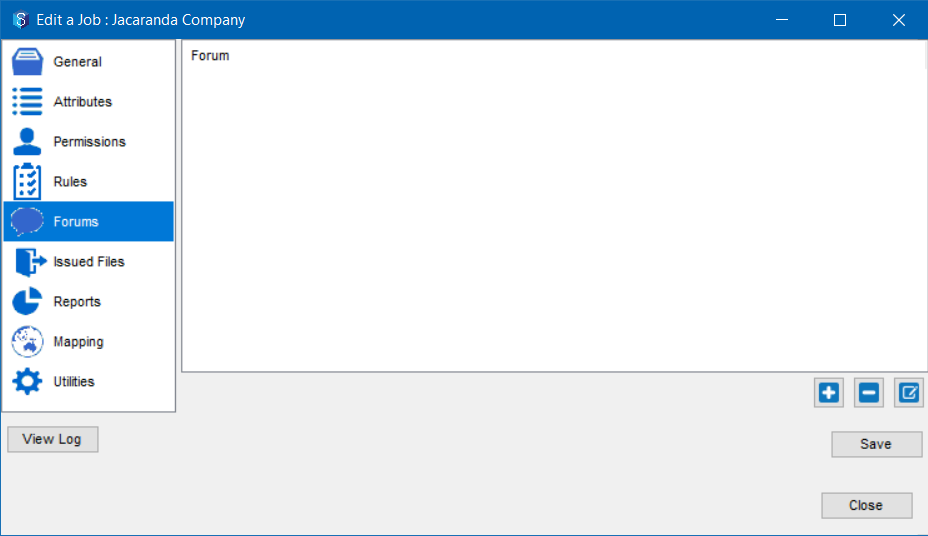
Select the Forums tab.
Click the
 icon.
icon.
The Edit forum window is displayed.
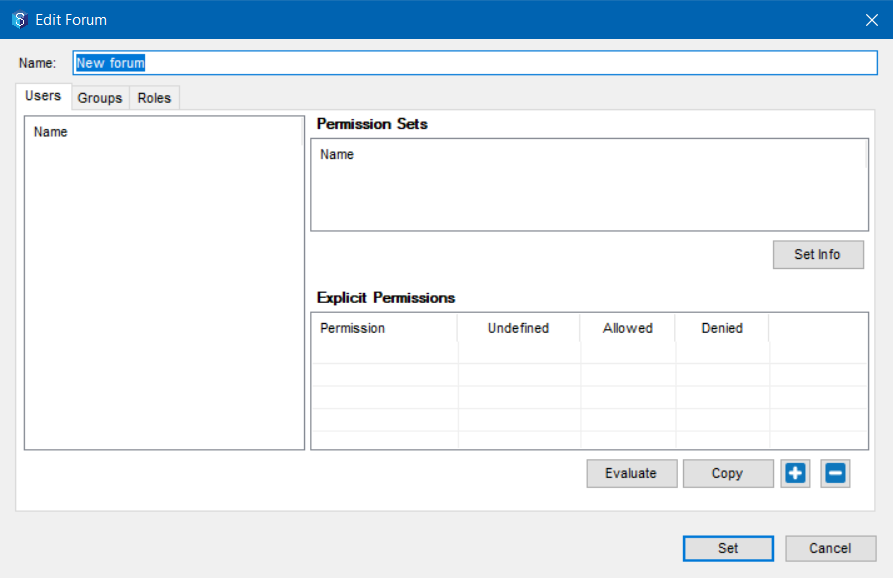
Enter a name for the forum in the Name box.
To add specific users, a specific user group, or a specific job team role to a Forum, do any of the following:
To add a user, select the Users tab and click the button
 to find and add a user.
To add a group, select the Groups tab and click the button
.png) to find and add a group.
to find and add a group.To add a job team role, select the Roles tab and click the
.png) button to find and add a role.
button to find and add a role.
To add permissions to a user, a user group, or a specific project role, do any of the following in the Users, Groups, and/or Roles tab, respectively.
In the Permission Sets section, select the check boxes displayed against the permission sets that you want to apply for the selected user, group, or project role.
You can select the checkbox next to a permission set and click the Set info button to view the explicit permissions included in that permission set.
You cannot edit or update the permissions displayed in the Permission Set Info window.
In the Explicit Permissions section, select the Undefined, Allowed or Denied options displayed against the individual permissions related to forums.
Note that if any of these explicit permissions are part of a permission set, updating them in the Explicit Permissions section will override what is defined in a permission set.You can access a forum in different capacities only if your 12d Synergy Administrator has added you to it and has granted the applicable explicit permissions from the list below.
View
Write
Can read forums and categories?
Can write to forums and categories?
Can moderate forums and categories?
Click the Set button.
A new forum is created in which selected users, user groups, or team roles can participate in conversations based on their access permissions. Also, a Forums tab is added to the job tree structure in the 12d Synergy Client and 12d Synergy Web App applications.
1.2. How to Create a New Category
Client Content
The Forums tab is displayed in the job tree structure only when at least one forum exists in the project.
In the job tree, click the Forums link.
The categories of conversations created for that Forum, if any, are displayed in the right panel.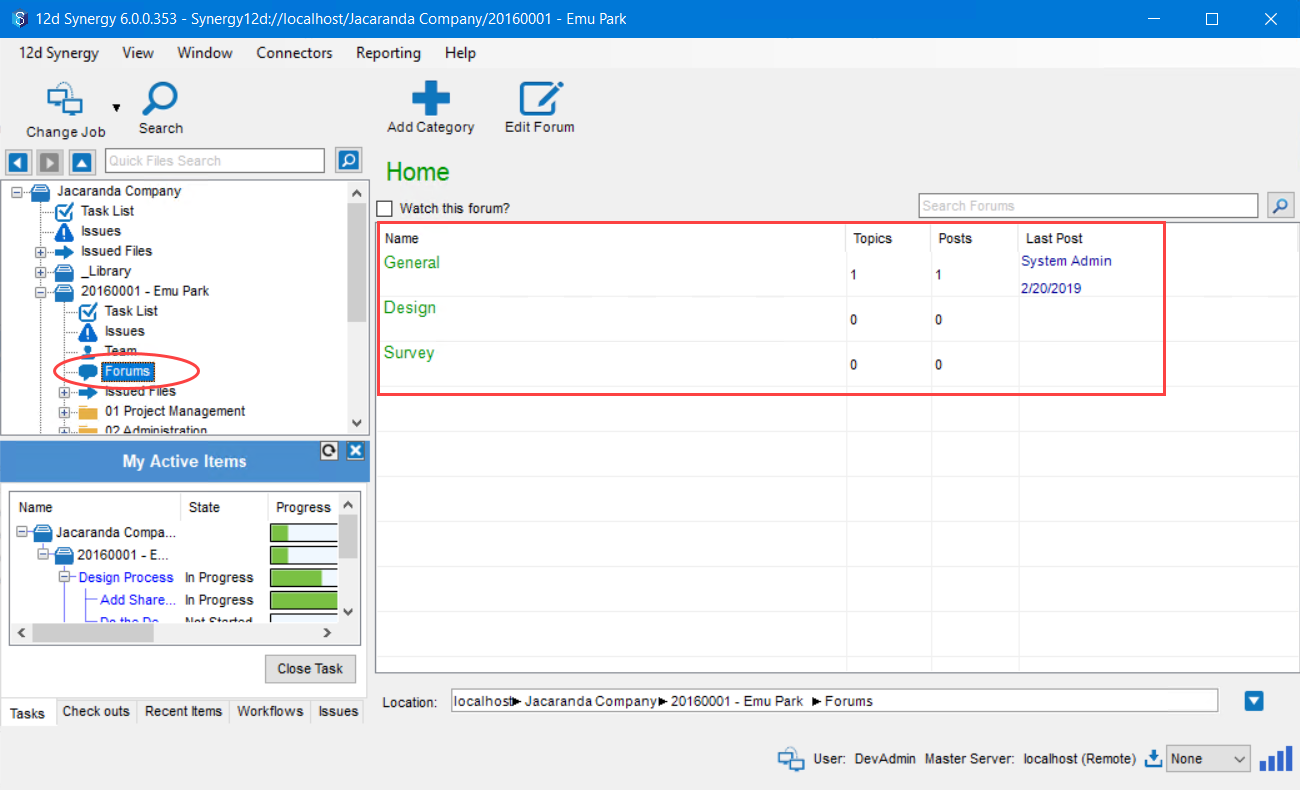
Click the Add Category
 button in the toolbar.
The Add a New Category window is displayed.

Enter the name for the category in the Category name box.
Enter a description for the category in the Description box.
Click the Add button.
The new category is created and is displayed in the list of categories for the Forum.You can edit the name of the Forum and its permissions using the Edit Forum
 button in the toolbar.
Select the Watch this forum? checkbox to be notified of any activity that happens in the Forum via email.
1.3. How to Create a New Topic
Under each defined category, different topics can be created for discussion.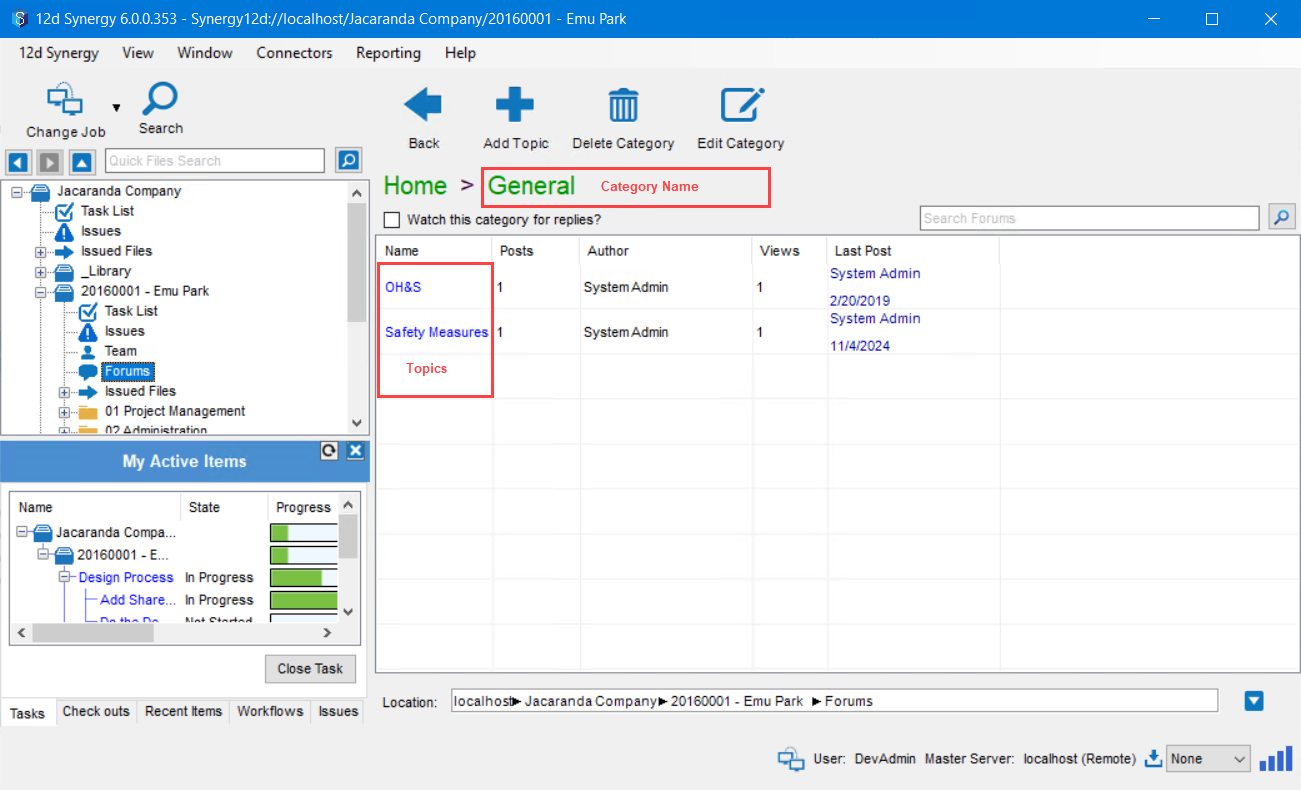
Click a category under which you want to create a topic.
Click the Add Topic
 button in the toolbar.
The Add a Topic window is displayed.
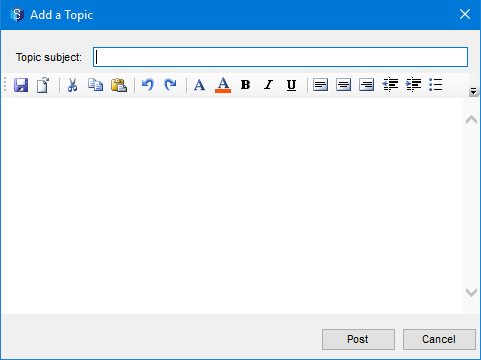
Enter the name of the topic in the Topic Subject box.
Enter a detailed description of what you want to discuss under that topic in the text editor below.
Click the Post button.
The new topic is created and displayed in the list of topics for the selected category.You can edit the name of the category and its access permissions using the Edit Category
 button in the toolbar.
You can delete a category by clicking the Delete Category
 button in the toolbar.
Select the Watch this category for replies? checkbox to be notified of any new topics created in the category.
1.4. How to Create a New Post
Creating a new post and responding to a post are the same process.
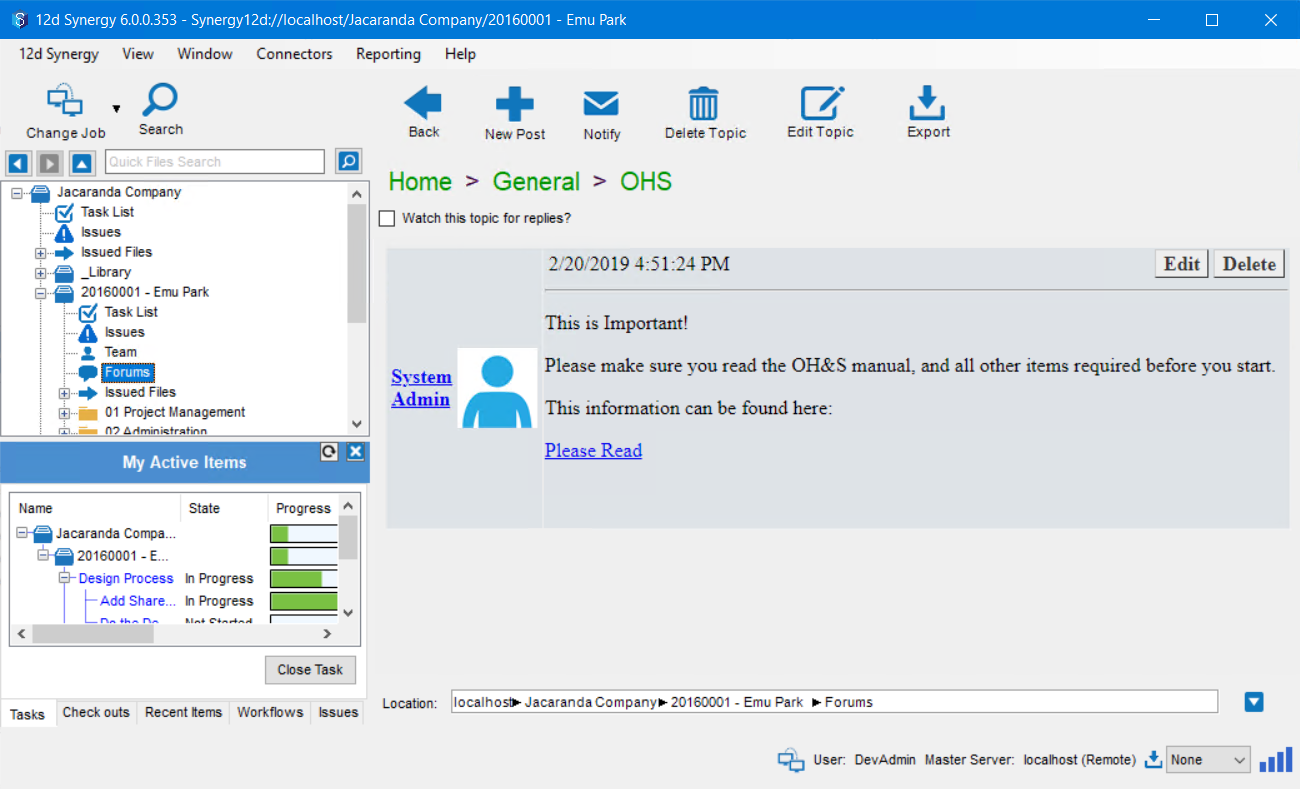
To respond to a topic, click the New Post button in the toolbar.
The Add a Post window is displayed.

In the text editor, add the response to the previous post. You can add a hyperlink using the Link
 icon and an image using the Image
  icon.
icon.Click the Post button.
The post is displayed as the latest post on the topic.Select the Watch this topic for replies? checkbox to be notified of any new posts made to the selected topic.
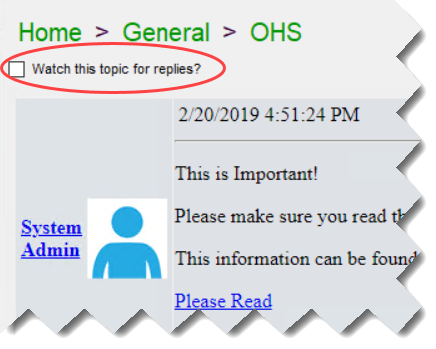
You can edit the name of the topic and its access permissions by using the Edit Topic
 button in the toolbar.
You can delete a topic by clicking the Delete Topic
 button in the toolbar.
You can delete a post by clicking the Delete
 button against the post. Note that only the 12d Synergy Administrator who created the forum has the permission to delete any post in that forum.
You can also edit a post by clicking the Edit
 button against the post.
You can notify other team members of any activity on a topic by clicking the Notify
 button and selecting the required team members.