There are two methods for backing up a database.
1. Via the 12d Synergy Administration Application
This method works only when you know the destination path on the Server where the database backup has to be stored (for example, c:\temp).
The path you mention must be valid.
In the 12d Synergy Administration application, select the General tab > Database Backup tab.
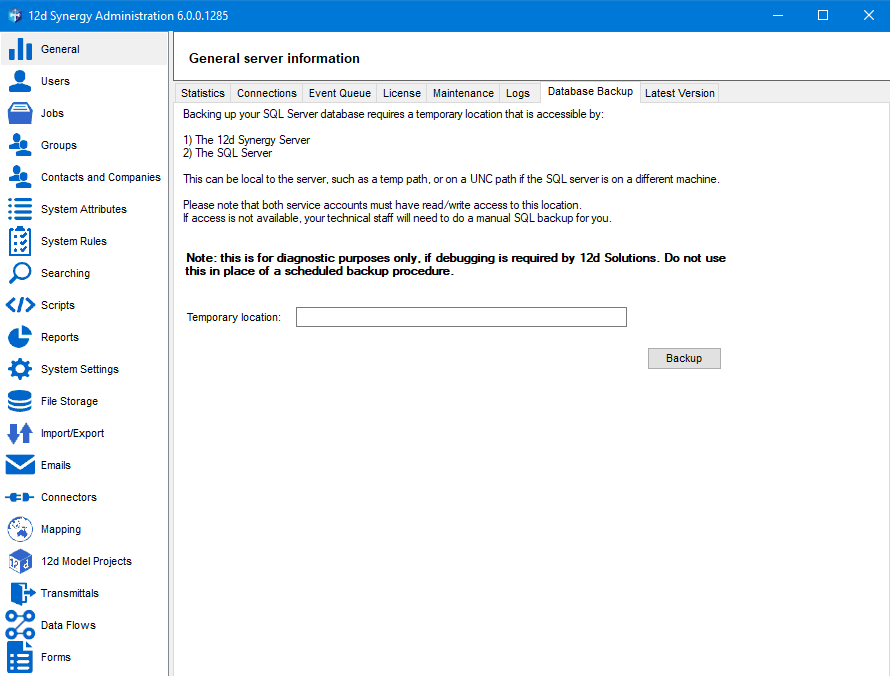
Enter the temporary path on the server, such as c:\temp, in the Temporary location box.
Click the Backup button.
The following prompt is displayed.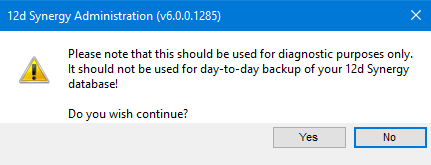
Click the Yes button.
You will be prompted to browse and select a location to save the backup file.
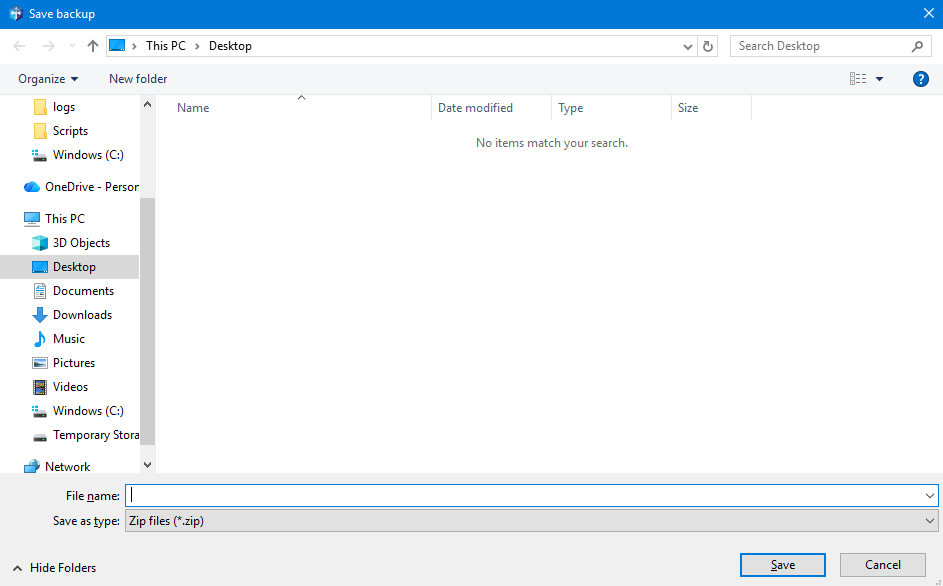
Select the required location and click the Save button.
The backup file is created, zipped, and saved at the selected location.
2. Via SQL Server Management Studio on the Server
For this method, you need to access the Server remotely.
In SQL Server Management Studio, connect to the database server.
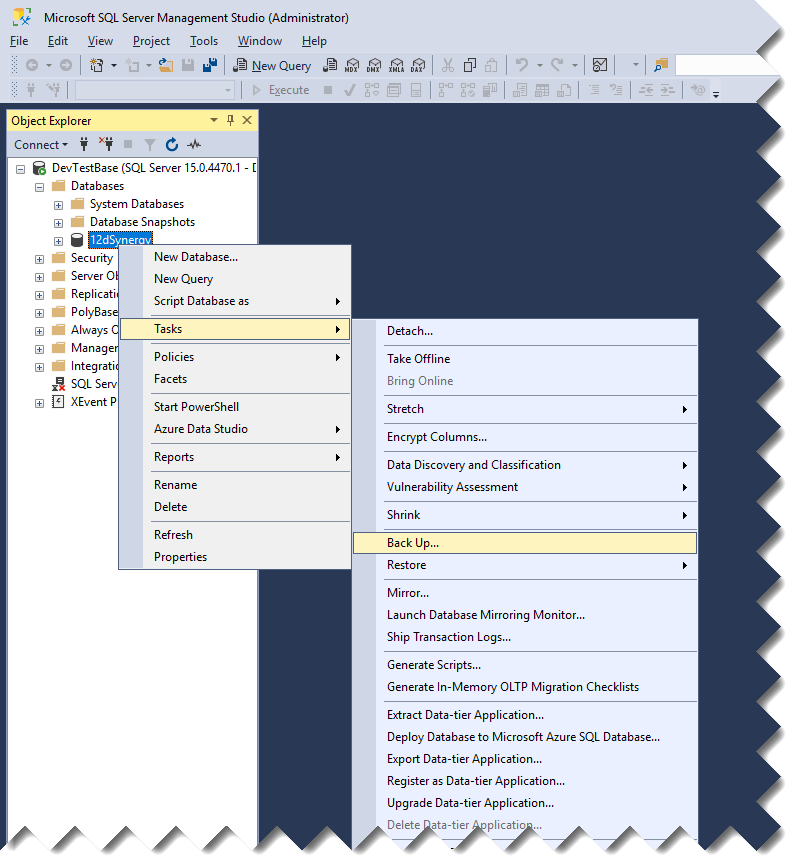
Expand the Databases node, select the 12d Synergy database (most likely named 12dSynergy).
Right-click it and select the Tasks > Backup option.
Ensure the following in the Back Up Database - <database name> window:
.png)
Backup type list has the Full option selected.
Back up to list has the Disk option selected.
If a file path is listed under the Back up to list, select it and click the Remove button.
Click the Add button.
The Select Backup Destination prompt is displayed.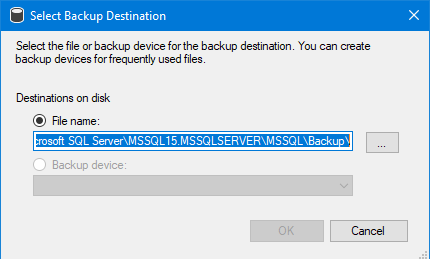
Click the ellipsis
.png) button displayed beside the File name: option and select a destination on the disk.
button displayed beside the File name: option and select a destination on the disk.Click the OK button.
The backup file (.bak) is created and saved at the selected location.Access the backup location and zip the .bak file for later use.