Restarting the Server services should be performed by your IT Administrator after consulting with the 12d Synergy Support team. It is recommended that you perform these procedures during scheduled maintenance, as the 12d Synergy applications will be unavailable.
1. How to Restart the 12d Synergy Server Service
Click the Windows Start button and type Services in the search bar.
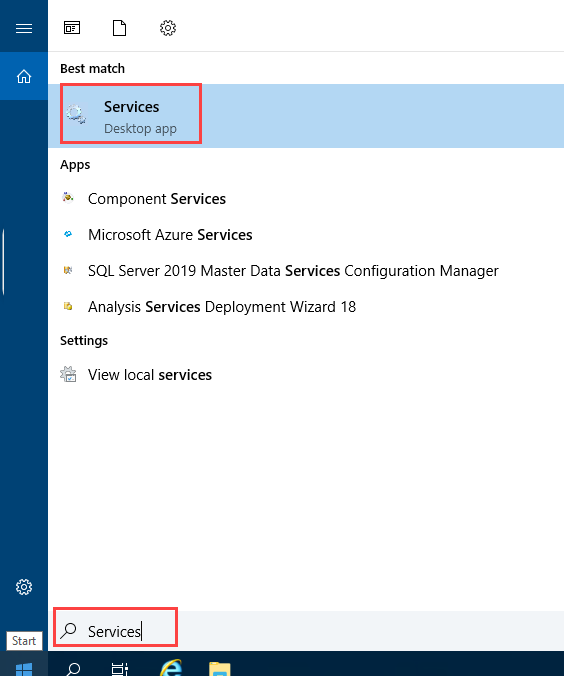
Select the Services app, as shown in the image above.
The Services app is open.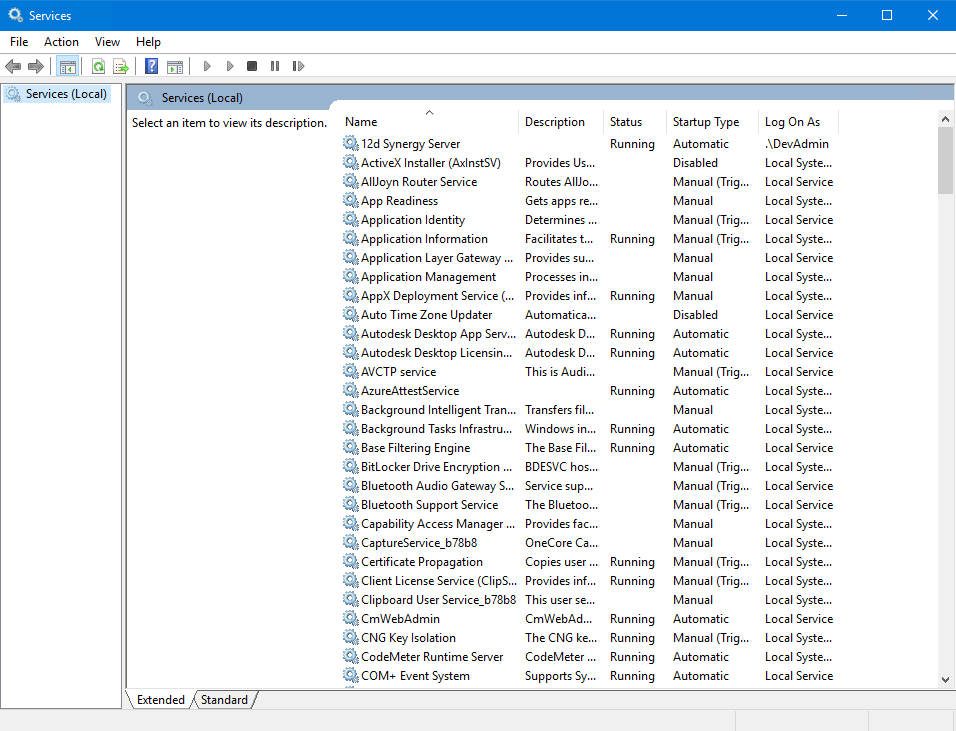
In the Services app, right-click the 12d Synergy Server service and select the Stop option.
The service is stopped.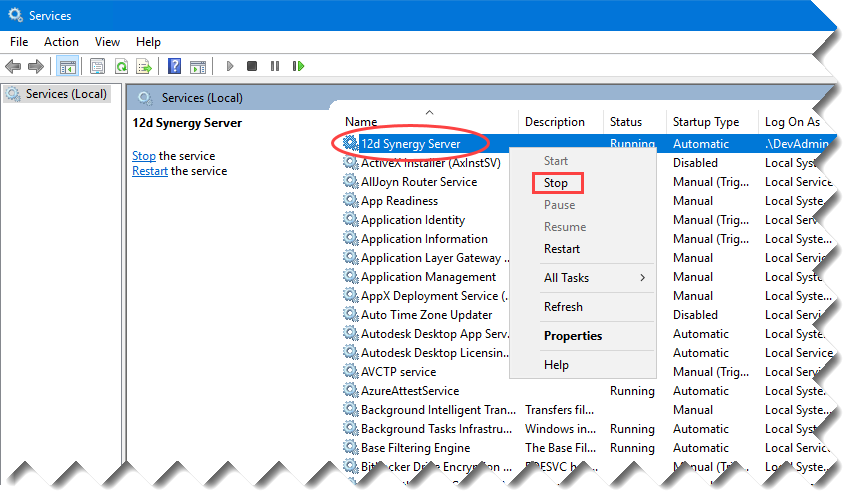
Right-click the 12d Synergy Server service again and select the Start option.
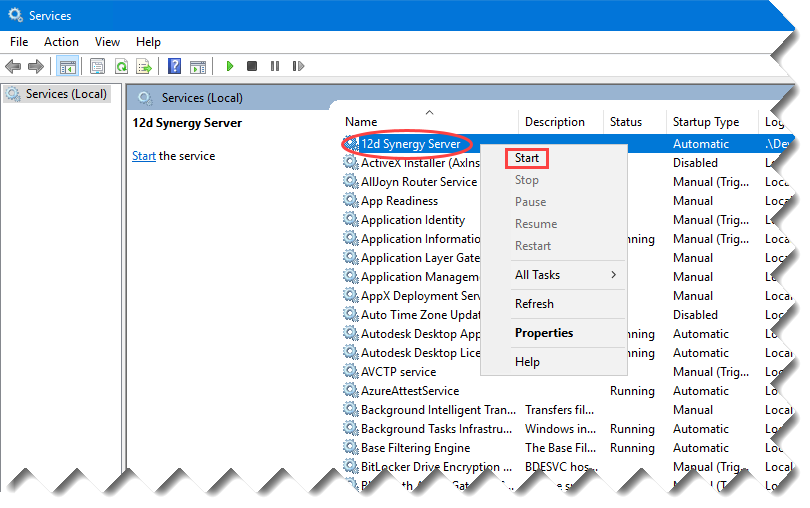
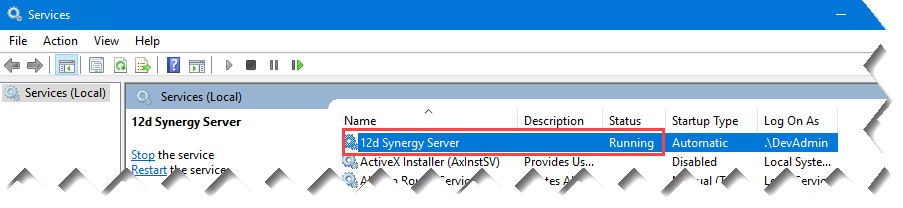
The 12d Synergy Server service is started, and its status is shown as Running in the Status column.
2. How to Restart the SQL Service Steps
This procedure is also used to release memory from its query cache.
Click the Windows Start button and type Services in the search bar.
Select the Services app, as shown in the image above.
The Services app is open.In the Services app, right-click the SQL Server (SQLEXPESS) service and select the Stop option.
The SQL Server (SQLEXPESS) service is stopped..png)
Right-click the SQL Server (SQLEXPESS) service again and select the Start option.
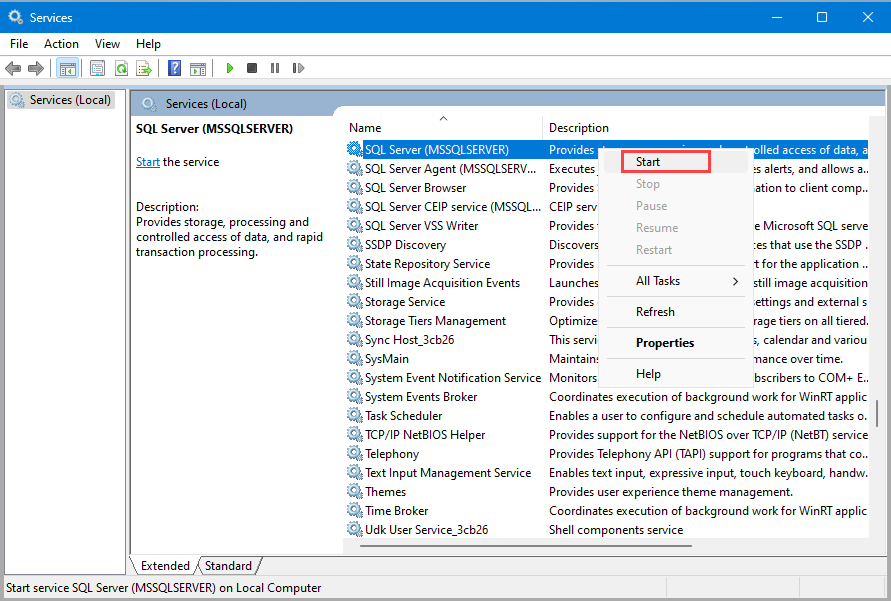
The SQL Server (SQLEXPESS) service is started again.