12d Synergy can operate in ‘Mixed’ Authentication Mode, meaning you can also log in with custom-defined credentials.
To use mixed mode, the following two conditions must be met.
Active Directory for Group Membership: OFF
This setting can be turned off from the 12d Synergy Administration application > System Settings tab > General tab > Active Directory Server setting.
Certificate Status: Configured
To configure the certificate, you need to provide an SSL Certificate from a third-party Certificate Authority (CA). You can obtain them in the following ways.
The Certificate must be installed in the following locations.
Microsoft Management Console > Console Root > Certificates (Local Computer) > Personal
Microsoft Management Console > Console Root > Certificates (Local Computer) > Trusted People
DO NOT use a self-signed certificate.
The status of the above two settings is displayed in the 12d Synergy Administration application > Users tab > Custom Login Mode tab, as shown below. 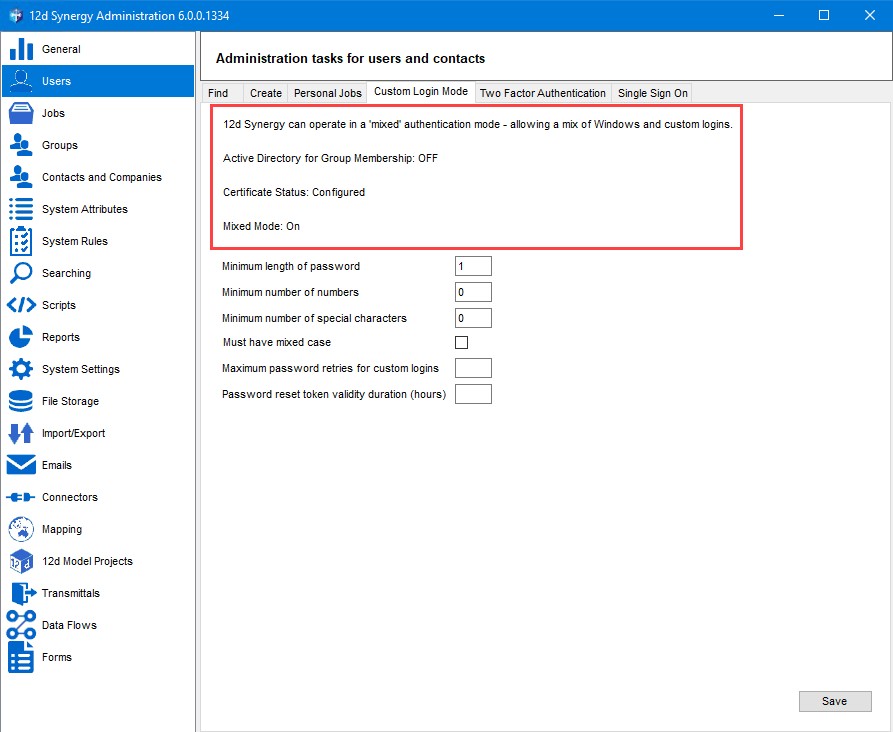
Once all the above conditions are met, you can create a user with Custom Login credentials from the 12d Synergy Administration application > Users tab > Create tab > Standard tab, as shown below.
.png)