The 12d Synergy Outlook Plugin only works with the Classic version of Microsoft Outlook.
If the 12d Synergy tab is not appearing in your MS Outlook menu bar, you can enable it in one of the following ways:
1. Add-ins via Outlook Options
In the Classic version of Microsoft Outlook, select the File menu > Options option.
.png)
The Outlook Options window is displayed.Select the Add-ins tab on the left.
.png)
Ensure that COM Add-ins option is selected in the Manage list and click the Go button.
The COM Add-ins prompt is displayed.Select the following checkboxes.
12d Synergy Outlook Plugin Loader
12d Synergy Outlook Plugin V5 or 12d Synergy Outlook Plugin V6, whichever is available.
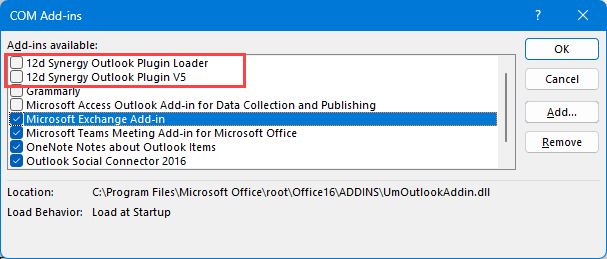
Click the OK button and restart Microsoft Outlook.
The 12d Synergy plugin is displayed as a menu option in Microsoft Outlook.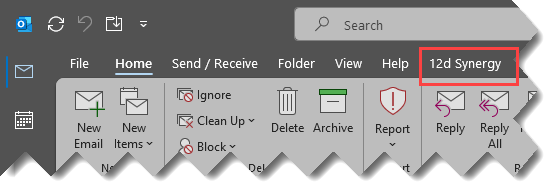
2. Slow and Disabled COM Add-ins
In the Classic version of Microsoft Outlook, select the File menu > Options option.
The Outlook Options window is displayed.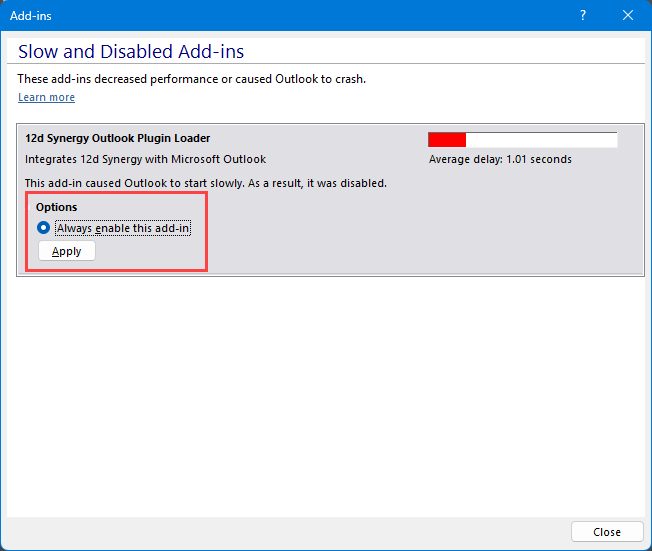
Select the Slow and Disabled COM Add-ins option by clicking the Manage COM Add-ins button in the Account Information section.
The Add-ins prompt is displayed.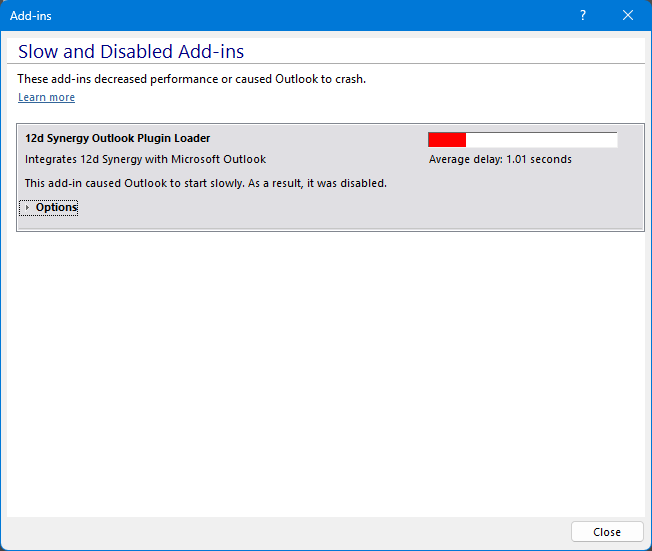
Expand the Options link, select the Always enable this add-in option and click the Apply button.
.png)
Click the Close button and restart Microsoft Outlook.
The 12d Synergy plugin is displayed as a menu option in Microsoft Outlook.
3. Registry to Set Load Behaviour
⚠️ Important Disclaimer
The Windows Registry contains critical system and application configuration settings. Incorrect changes to the registry can cause Microsoft Outlook, Microsoft Office, any other applications, or Windows itself to behave unexpectedly.
These instructions should only be performed by users with administrative privileges who understand the associated risks, or under the guidance of your IT Support team. Before making any changes, consider creating a backup of the relevant registry keys or a system restore point.
12d Synergy accepts no responsibility for issues arising from incorrect registry modifications.
It is suggested that you use this method only if the two above-mentioned procedures do not work. If you need further assistance, please reach out to the 12d Synergy Support team.
Click the Windows Start button and type regedit in the search bar.
If you do not have administrative privileges on this system, you cannot perform this procedure.
Navigate to Computer\HKEY_LOCAL_MACHINE\SOFTWARE\Microsoft\Office\Outlook\Addins\.
The Registry Editor window is displayed.Access the 12dSynergy Outlook Plugin as shown in the image below.
.png)
Right-click the LoadBehavior value in the right panel, and select the Modify option.
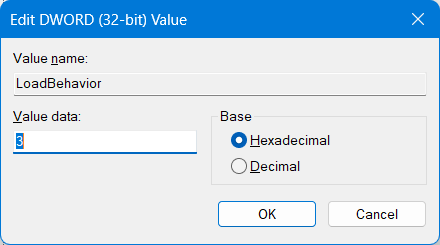
Enter 3 in the Value data box and click the OK button.
Repeat the above steps for any other 12dSynergy Outlook Plugin in this location.
Close the Registry Editor window and restart Microsoft Outlook.
The 12d Synergy plugin is displayed as a menu option in Microsoft Outlook.