In this quick sheet, you’ll learn our recommended best practices for managing LISTECH Neo files inside 12d Synergy.
1.1. Recommended File Structure
One of the unique features of 12d Synergy is its ability to track changes to a folder of files rather than individual files themselves. This happens in a Managed Folder. This means that you can check out the managed folder, add, delete or update files in it. 12d Synergy can manage these changes at check in by uploading them to the server. If a folder is managed, it means that you cannot check out the files individually; you must work with the whole folder at one time. A managed folder is displayed as a blue folder  .
.
When using LISTECH Neo within 12d Synergy, the working project can be checked out as a managed folder to ensure file integrity.
.png)
1.2. Creating Managed Folders
In the 12d Synergy Client application, right-click the required job or folder from the tree structure under which you want to create a new managed folder, and select the New > Folder option or click the New Folder
 icon from the top ribbon.
The Create a Folder window is displayed.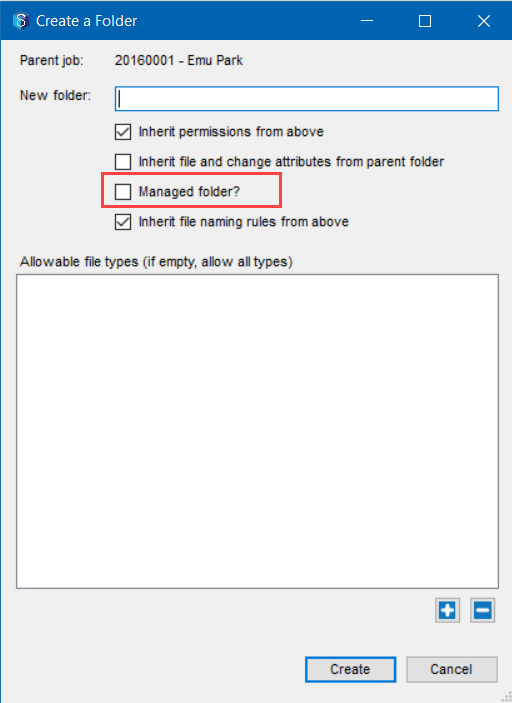
Enter a name for the new folder in the New folder box.
Select the Managed Folder? checkbox.
Click the Create button.
A new managed folder is created.
1.3. Working with Managed Folders
In the 12d Synergy Client application, select the managed folder that holds the files or subfolders you want to work on.
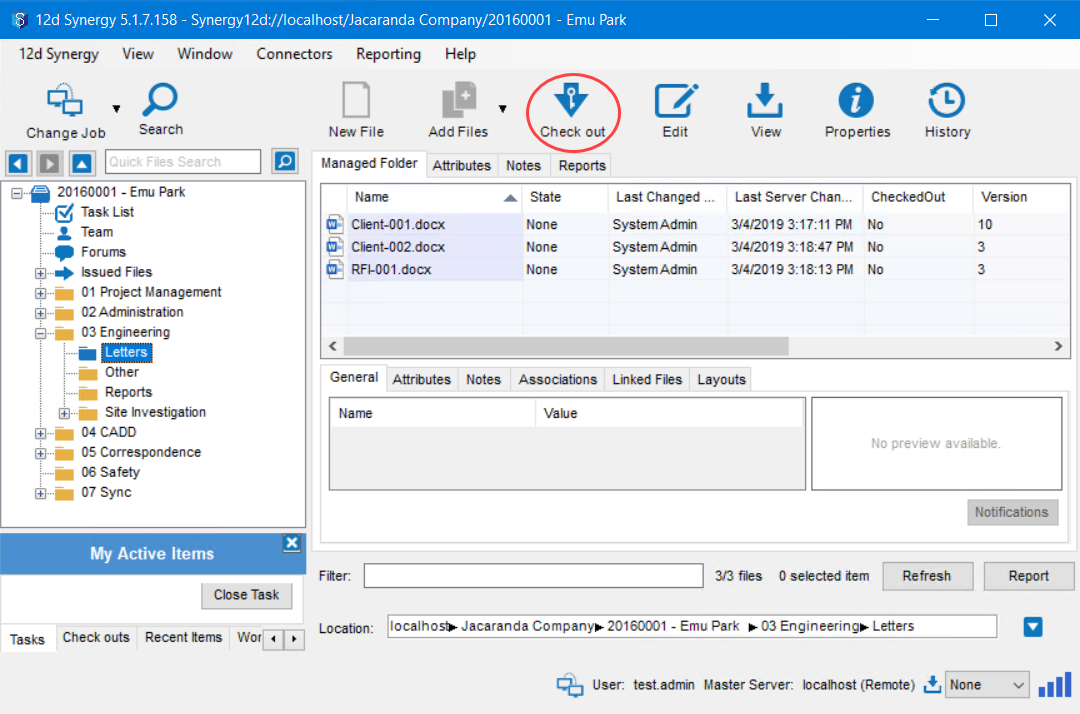
Click the Check Out
 icon in the quick access toolbar.
All the files or subfolders in the managed folder are checked out. You can now open an individual file from the managed folder and update it.Now, right-click the same managed folder from the tree structure and select the Explore option.
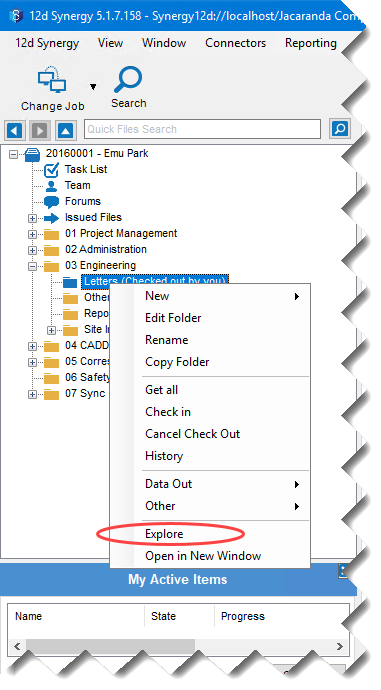
The selected managed folder is opened in Windows Explorer.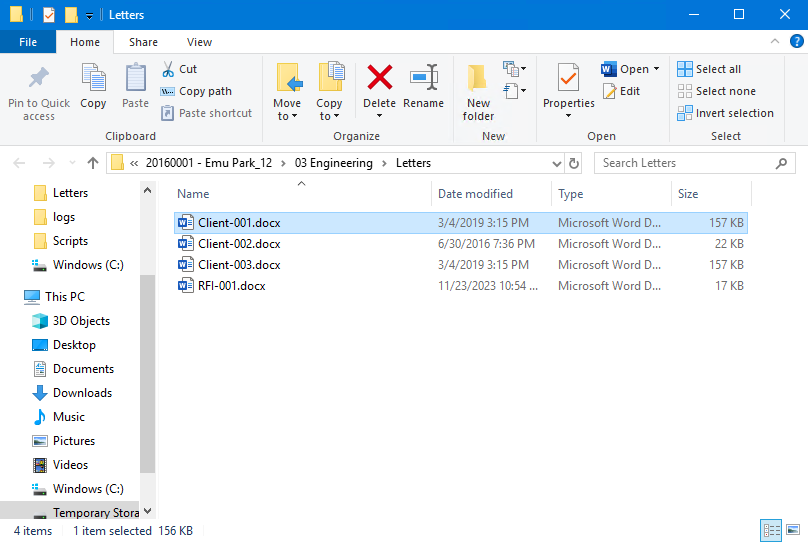
Make the required changes to the files (update, add or delete files).
Close the Windows Explorer.
In the 12d Synergy Client application, select the updated managed folder in the tree structure.
.jpg)
Right-click the folder and select the Check-in option, or click the Check In
 icon on the quick access ribbon, as shown in the above image.
You will then be prompted for a change description, which will form the history of your managed folder.
During the process of checking out files, data is cached to your workspace. This workspace is installed on a local drive, such as the C:\ or D:\ drive, whichever is utilised during the initial installation of the program.
Commonly, large point cloud datasets are not stored within the 12d Synergy environment. Rather, the extracted points, lines and polygons, with the raw point cloud data being referenced from an external drive.
If data retention is required, the raw point cloud data can be stored within the 12d Synergy environment.
For example, point clouds related to monitoring may be kept for traceability and to safeguard against data loss. On the other hand, point clouds used for capturing one-off datasets, such as pre-design ground information (Greenfield Estates), may be kept in their raw form in an external location while the extracted features can be stored within the 12d Synergy environment.If the dataset is too large to store on your local drive, it can be offlined to a separate location.
For more details about Offlining folders, please refer to the 12d Synergy knowledge base.
1.4. Library/Template files
LISTECH Neo template files also have their place in 12d Synergy. We recommend housing them as folders in a library job, central to your system. Ensure that all applicable users have at least view/read permissions. Once the files are centrally located, one of the following approaches may be used to ensure that the current information is available to the user.
To house library information in 12d Synergy, all users must have their workspace installed on the same local drive (C:\ or D:\, etc.).
1.4.1. ‘Get All’ and Notifications
All users who require the LISTECH Neo library can perform a Get All function on the library folders to have a copy of the library in their local workspace. The path to the version on the local workspace can then be used for the pathing in LISTECH Neo.
This process enables the customisation to work with LISTECH Neo while maintaining it in one location in 12d Synergy for easy updating. Also, we suggest adding a notification to the folder. It’s a great way to ensure all staff are aware of any updates to the LISTECH Neo library folder.
For more details about Notifications, please access the 12d Synergy Knowledge Base.
1.4.2. Download Dependency Rule
A download dependency rule is a way to automate performing a Get All in 12d Synergy. This makes working with files easier by automatically retrieving any necessary peripheral information when opening the file. It can be set up for any folder within your project.
To set up a Download Dependency rule on your system, you require administrative access.
A simplified process for setting up a download dependency rule is mentioned below:
Right-click the Managed Folder and select the Edit Folder option.
In the Edit a Folder window, select the Rules panel on the left.
Then select the Download Dependency Rules tab at the top.
Click the
 button in the upper right to bring up the Add Download Dependency Rule window.
Name the rule and select the Download Dependencies from a specific folder option as the Mode.
Click the ellipsis
 button, navigate to and select the LISTECH Neo Library folder as the Specific Folder Path.
 Click Add and then click Save on the Edit a Folder window.
Creating a managed folder and download dependency rule in your template will ensure it is rolled out across all your Jobs, with no additional input required.
For more details about Download Dependencies, please access the 12d Synergy Knowledge Base.