A wildcard domain is only useful if there is a need for multiple subdomains. This is an advanced use case. It will require access to the Domain Name Server configuration.
12d Synergy cannot assist with how to do this, as each DNS editor is different. But we can provide the tools to use it. Additionally, your DNS may need to be updated each month. With additional scripting, this process can be easily automated. But 12d Synergy cannot provide support for this.
1.0. How to Generate a Certificate
This tool must be run from the command line and is configured via a JSON-formatted configuration file.
Choose a friendly name for the certificate.
In the sample config file below, the certificate is referred to as 12dSynergyCertificate.Create a config file at some location (eg: c:\acme\acme_dns.config).
{

   "ContactEmail": "mailto:Your@Email.com",

   "DomainName": "*.serveraddress.com",

   "ChallengeType": "DNS",

   "FriendlyName": "12dSynergyCertificate"

}
You can get help by running it with the --help option as shown below.
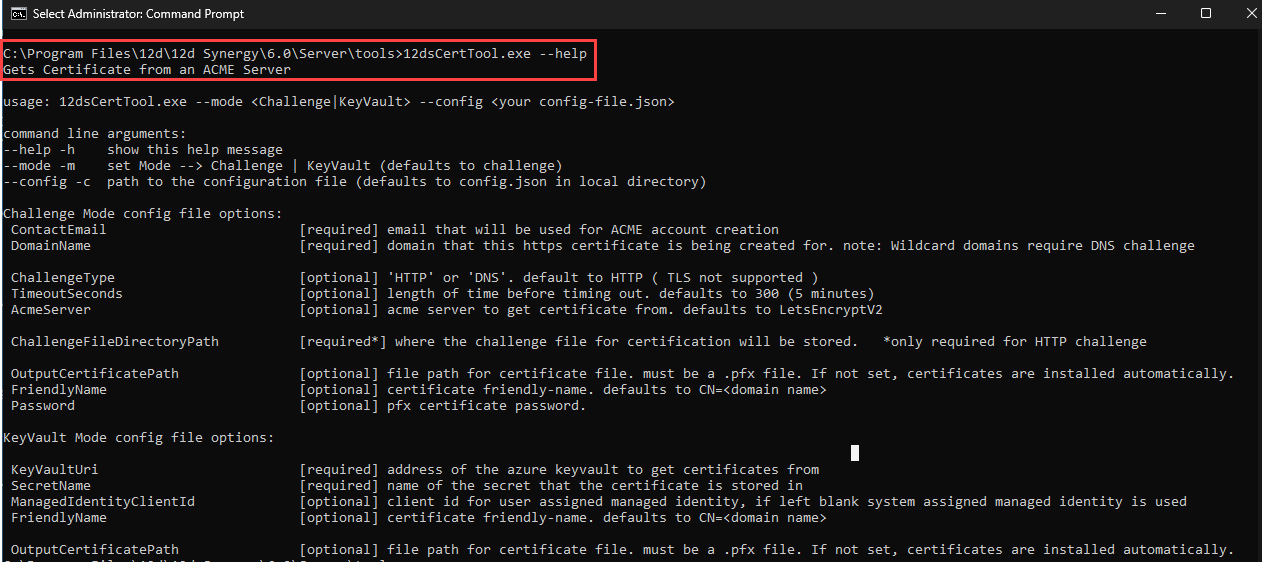
Run the tool at the command prompt using the following command.
12dsCertTool.exe --mode Challenge --config c:\acme\acme_dns.config The script will give you a DNS TXT token. For example, tVtid_Ytzt4jwu2yRrDh-4T-xgQjEl_lBiqKwJpYYHE is a sample DNS TXT token.
Add this to your DNS.
When this token is detected, the script will continue and issue your certificates.
Configure 12d Synergy to use the new certificate.
Go to 12d Synergy Administration application > System Settings tab > SSL Certificates tab > Use an Existing Certificate tab.
Enter the friendly name (from step 2 of this procedure) of the certificate in the Certificate Identifier box.
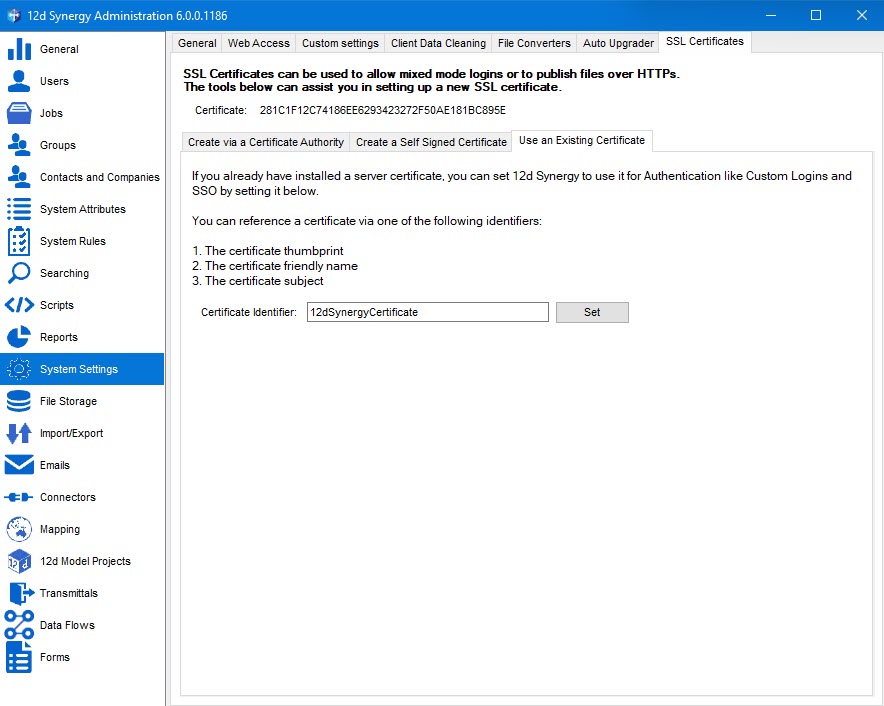
Similarly, in the 12d Synergy System Administration application > System Settings tab > Web Access tab > HTTPS Setup tab, enter the friendly name of the certificate in the Certificate Identifier box.
.jpg)
Restart your 12d Synergy Server.
Going forward, ensure to restart the 12d Synergy Server after the certificate is renewed.