If you are already a Microsoft Azure user, you may be storing your certificates in an Azure Key Vault. If you are using App Service Certificates, you can automatically renew your certificate and update it in the key vault.
12d Synergy support cannot assist with the following:
Setting up key vaults or Microsoft App Service Certificates
Configuring IAM / RBAC for key vaults
Configuring managed identities for key vaults
To retrieve the certificate from a key vault, the following are needed:
The key vault URI
The key vault secret name
A managed identity with key vault secret read access to the secret. This can be one of the following:
A system-managed identity
A user-managed identity
1.0. How to Install the Certificate
Choose a friendly name for the certificate.
In the sample config file below, the certificate is referred to as 12dSynergyCertificate.Create a config file at some location (eg: c:\acme\acme_dns.config)
For a system-managed identity, a sample JSON file is provided below.
{

   "KeyVaultUri": "https://mykeyvault.vault.azure.net”,

   "SecretName": "MySecretName”,

   "FriendlyName": "12dSynergyCertificate"

}
For a user-managed identity, a sample JSON file is provided below.
{

   "KeyVaultUri": "https://mykeyvault.vault.azure.net”,

   "SecretName": "MySecretName”,

   "FriendlyName": "12dSynergyCertificate",

   “ManagedIdentityClientId”: “YourClientID”

}
You can get help by running it with the --help option as shown below.
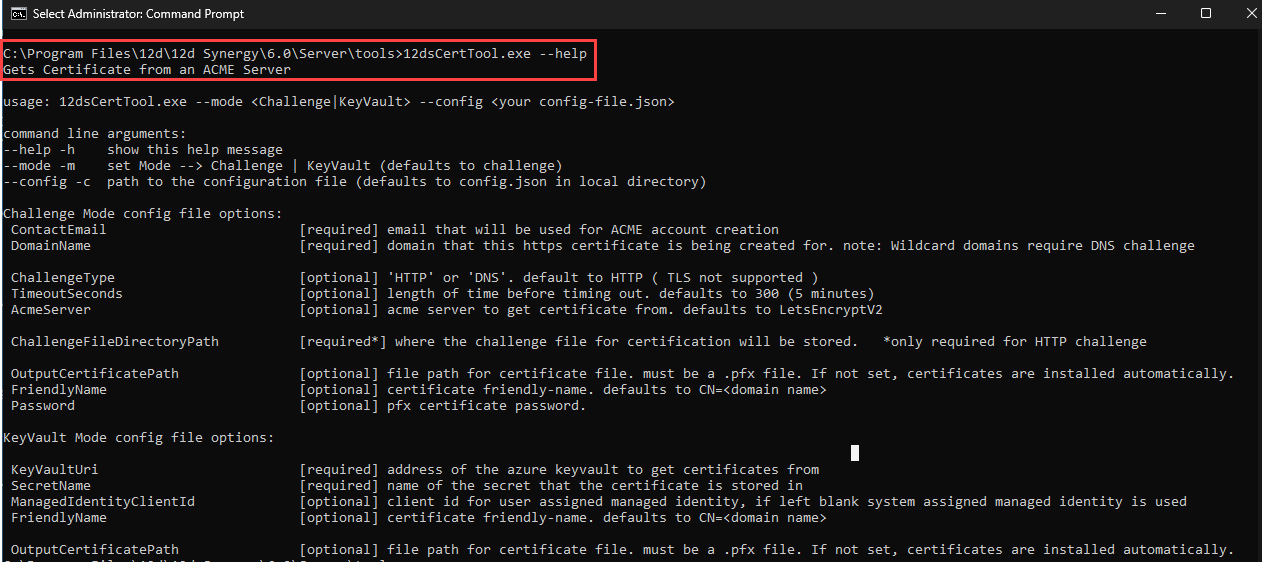
Run the tool at the command prompt using the following command and review the output.
12dsCertTool.exe --mode KeyVault --config c:\acme\keyvault.config Configure 12d Synergy to use the new certificate.
Go to 12d Synergy Administration application > System Settings tab > SSL Certificates tab > Use an Existing Certificate tab.
Enter the friendly name (from step 2 of this procedure) of the certificate in the Certificate Identifier box.
.jpg)
Similarly, in the 12d Synergy Administration application > System Settings tab > Web Access tab > HTTPS Setup tab, enter the friendly name of the certificate in the Certificate Identifier box.
.jpg)
Restart your 12d Synergy Server.
Going forward, ensure to restart the 12d Synergy Server after the certificate is renewed.
2.0. How to Set Up a Microsoft Task to Run the Tool
12d Synergy recommends setting up a Microsoft Task to run this on a schedule, but ensure it is run under an administrative account.
This schedule has to occur once per month. Note that the 12d Synergy Server must be restarted to use the new certificate. So, ideally, this schedule should be timed to run just before the regular maintenance task, which is performed from the 12d Synergy Administration application > General tab > Maintenance tab.