You can create a link to an entity or a page in the 12d Synergy Web or Mobile App and share it with other 12d Synergy users in different ways. Links can be created for entities such as folders, files, tasks, and jobs. A link to the Library page can also be created.
When a link other than a readable link is created and shared, it is an unbreakable link. This means that even if the shared entity is moved or renamed, the shared link will still function.
There are different types of links that can be created to share data and information among 12d Synergy users.
Web link – a link to the 12d Synergy Web or Mobile App that can be accessed by other Web users.
12d Synergy link – a link to the 12d Synergy Client application that can be accessed by pasting the link in the Location box of the home screen of the 12d Synergy Client application. This link works only on an installed 12d Synergy Client application.
Download link – a link that automatically downloads the entity without navigating to the required page/entity in the 12d Synergy App.
Readable link – a link that a user can read to understand what is being shared and accessed.
QR Code – a two-dimensional Barcode that can be scanned to view or download an entity. It can also be downloaded as an image (.png file) and shared.
1.1. How to Create a Link
In the 12d Synergy Web App, do one of the following:
To create a link to the job you are accessing, click the Create Link button depicted in the image below.

To create a link to the folder you are accessing, click the Create Link button depicted in the image below.

To create a link to the file you are viewing in the folder view, click the Create Link button from the vertical ellipsis
 button displayed near the file name, like depicted in the image below.
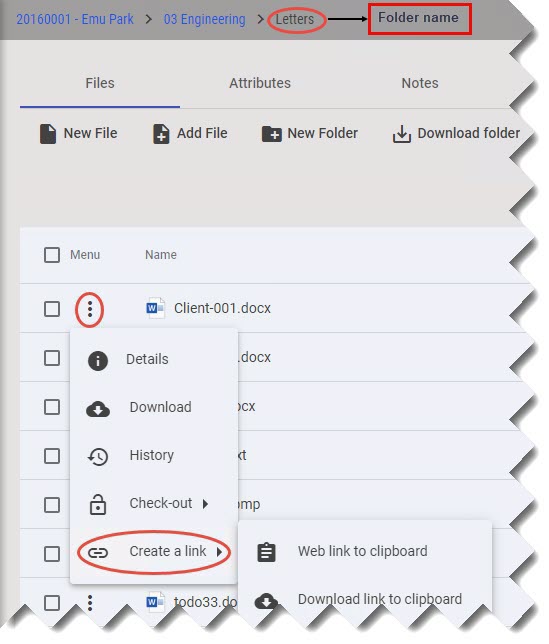
To create a link to the file you are viewing in the file view, click the Create Link button depicted in the image below.

Depending on the size of the browser or if you are using the 12d Synergy Mobile App, this option is displayed either in the 12d Synergy ribbon or under the
 bottom-right menu.
Select one of the following options to share the link.
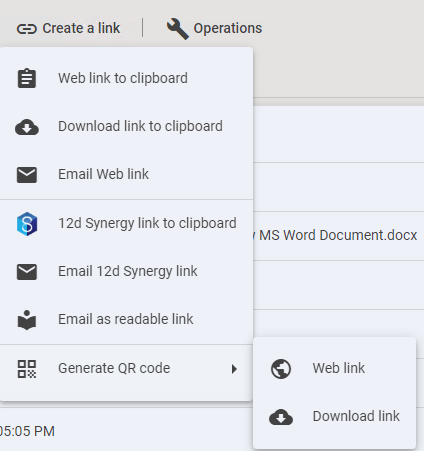
Web link to clipboard – to copy the Web link from the selected entity/page to the clipboard. An example of a Web link is https://mycompany.com/jobs/3_1.
Email Web link – opens a new email in MS Outlook with the link to the selected entity/page in the 12d Synergy Web app.
12d Synergy link to clipboard – copies the link of the selected entity/page in the 12d Synergy Client Application to the clipboard. An example of a 12d Synergy link is Synergy12d://mycompany.com?job=3_b993c729-bf98-490c-989d-5621e3b48139.
Email 12d Synergy link – opens a new email in Outlook with a link to the selected entity/page in 12d Synergy.
Download link to clipboard – copies the download link for the selected entity to the clipboard so it can be shared with others to download the entity. An example of a download link is https://mycompany.com/jobs/3_1/folders/4_1/download.
Email as a readable link – opens a new email in MS Outlook with a readable link to the selected entity. An example of a readable link is Synergy12d://mycompany.com/MyJob.
Generate QR Code > Web link – A QR code that, when scanned, will take the user to the page on which the code was generated.
Generate QR Code > Download link – A QR code that, when scanned, will download the entity that the code was generated for.
Share the link with other 12d Synergy users so they can access or download the entity.