V5 onwards only
The Username & Password and Username & Auth Client methods are considered legacy authentication options. These were designed for older systems and may not meet modern security standards.
For enhanced security and simplified management, we recommend using Personal Access Tokens (PAT).
This tutorial demonstrates how to log in to 12d Synergy and use access tokens via the RESTful API.
The commands are provided in curl and can be run from the command prompt when the 12d Synergy Server is running (or in a batch script).
Additional API documentation
To get a list of most of the API requests available, with the 12d Synergy server running, browse http://synergy.myserver.com/api-docs/ui/index.
(Replace synergy.myserver.com with the external server address and update the port numbers if necessary.)
1.1. Logging in with a User Account
For a simple demonstration, a user account is used with a username-password combination (no MFA or SSO).
The 12d Synergy Administrator can provide the external server address, external port (if used), username & password for the user connecting and the encoded API Key of the Angular App, which will be required for login. If the user account is set up to work with Windows Active Directory, the username is preceded by AD\ (see the example request below). The Angular App can be found in the 12d Synergy Administration application > System Settings > Web Access > Auth Clients (see screenshot below). The 12d Synergy Administrator should use the Copy API Key String button when selecting the Angular App to get the encoded auth client key.
The login request should be done once a day unless the default expiry number of hours(24 hours) has been changed. The 12d Synergy Administrator can check this in the 12d Synergy Administration application > System Settings > Web Access > Advanced > Inactivity timeout.
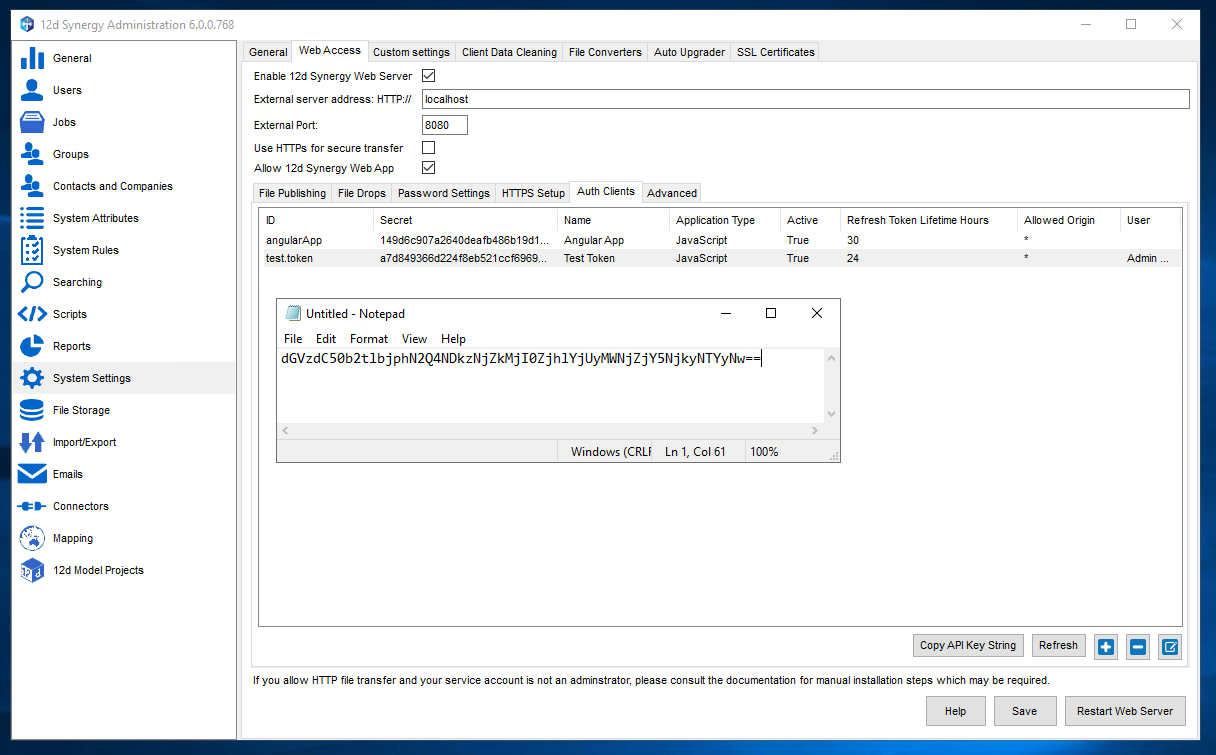
Please note that while this example uses External Port: 8080 to connect to the server, 12d Synergy can be set up without port numbers. In this case, simply use the external address with no numbers following it.
The URL for the login request is the external server address concatenated with the external port number (if used) and /token. (It is not displayed in the API documentation with the rest of the exposed methods.)
The Client ID must be put in the Authorisation header as shown below:
curl --location --request POST "http://synergy.myserver.com:8080/token" ^

--header "Content-Type: application/x-www-form-urlencoded" ^

--header "Authorization: BASIC dGVzdC50b2tlbjphN2Q4NDkzNjZkMjI0ZjhlYjUyMWNjZjY5NjkyNTYyNw==" ^

--data-urlencode "grant_type=password" ^

--data-urlencode "username=AD\bill.posters" ^

--data-urlencode "password=blabla" ^

--data-urlencode "remember=true" ^

--data-urlencode "mfa_key=" ^

--data-urlencode"machine_key="
{
"access_token": <token>,
"token_type": "bearer",
"expires_in": 599,
"refresh_token": "0c0c0509c38a4219aba19b5d175e8e6b",
"user_name": "AD\bill.posters",
"user_id": "<ID>6</ID><ServerID>1</ServerID><ServerGUID>cd877c4c-ca8f-4476-83fe-9a2cf107621c</ServerGUID>",
"as:client_id": "angularApp",
"is_read_only_web_user": "false",
".issued": "Thu, 22 Dec 2022 23:14:42 GMT",
".expires": "Thu, 22 Dec 2022 23:24:42 GMT"
}1.2. How do Tokens Work
A successful response includes the refresh token, which is valid for 24 hours unless the Administrator has changed the default number of hours. It also includes an access token, which is only valid for 10 minutes. The refresh token will be used in the refresh token request to get a new access token (this way, the username and password are not sent each time). To handle this type of authentication, the refresh token request should be sent each time before any other type of request is sent. That way, in the following request, the updated access token can be sent.
1.2.1. Using the Refresh Token to Update the Access Token
The same request is used as the one above. The Client ID is sent up again in the header, and the refresh token is sent in the data. But this time, the username and password are not required.
curl --location --request POST "http://synergy.myserver.com:8080/token" ^

--header "Content-Type: application/x-www-form-urlencoded" ^

--header "Authorization: BASIC dGVzdC50b2tlbjphN2Q4NDkzNjZkMjI0ZjhlYjUyMWNjZjY5NjkyNTYyNw==" ^

--data-urlencode "grant_type=refresh_token" ^

--data-urlencode "refresh_token=0c0c0509c38a4219aba19b5d175e8e6b"
{
"access_token": <token>,
"token_type": "bearer",
"expires_in": 599,
"refresh_token": "0c0c0509c38a4219aba19b5d175e8e6b",
"user_name": "AD\bill.posters",
"user_id": "<ID>6</ID><ServerID>1</ServerID><ServerGUID>cd877c4c-ca8f-4476-83fe-9a2cf107621c</ServerGUID>",
"as:client_id": "angularApp",
"is_read_only_web_user": "false",
".issued": "Fri, 23 Dec 2022 02:31:49 GMT",
".expires": "Fri, 23 Dec 2022 02:41:49 GMT"
}The access token in the response appears the same at first glance, but at the end, the characters are different. This new access token is used for the next request.
The responses from both the login and refresh requests also include other useful information, such as the user_id, whether the user is a 'read-only web user' (aka collaborator), and the server guide for the connected server.