To generate or renew a certificate for a fixed domain like synergy.myserver.com, ACME will challenge over TCP port 80. It does this because there isn’t a certificate yet for HTTPS. It will try to read a file of a particular name, but the name changes each challenge.
This can be done via 12d Synergy or through other web servers that can read files, but cannot assist with configuring other tools such as IIS, NGINX, Apache, etc.
Please note that 12d Synergy will accept requests on TCP port 80 for ACME purposes only when an ACME challenge file exists. At other times, it will be rejected.
1.0. How to Generate a Certificate
This tool must be run from the command line and is configured via a JSON-formatted configuration file.
Decide how to deliver the certificate file.
Will it be via 12d Synergy over TCP port 80, or through another web server?
If it is through 12d Synergy, ensure to have the location of your general store.
The Challenge File Directory Path is the path to your <General Store>. For example, it can be c:\12dSData\GeneralStore\Acme.
Choose a friendly name for the certificate to refer to it.
In the sample config file below, the certificate is referred to as 12dSynergyCertificate.Create a config file at some location (eg: c:\acme\acme.config).
{

   "ContactEmail": "mailto:Your@Email.com",

   "DomainName": "your.serveraddress.com",

   "ChallengeType": "HTTP",

   "ChallengeFileDirectoryPath": "StorageLocation – see step 1 of this procedure",

   "FriendlyName": "12dSynergyCertificate"

}
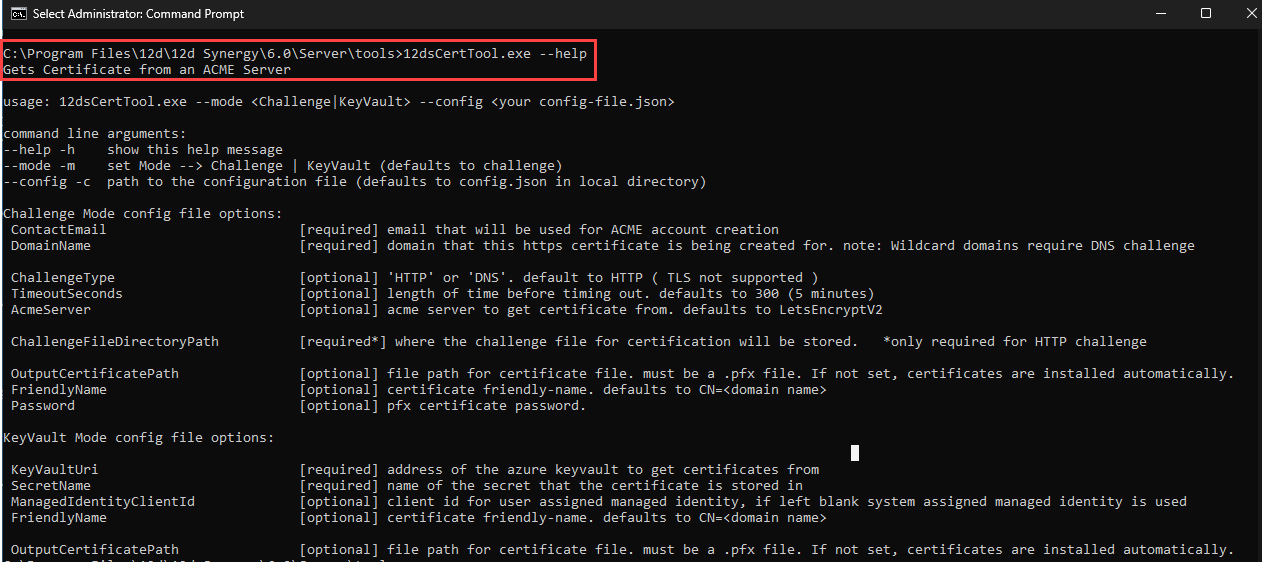
You can get help by running it with the --help option as shown below.
Configure 12d Synergy to accept ACME challenge requests, if required.
Go to your 12d Synergy Administration application > System Settings tab > Custom Settings tab.
Add a custom setting, AcmeEnabled = 1, using the
.png) icon.
icon. 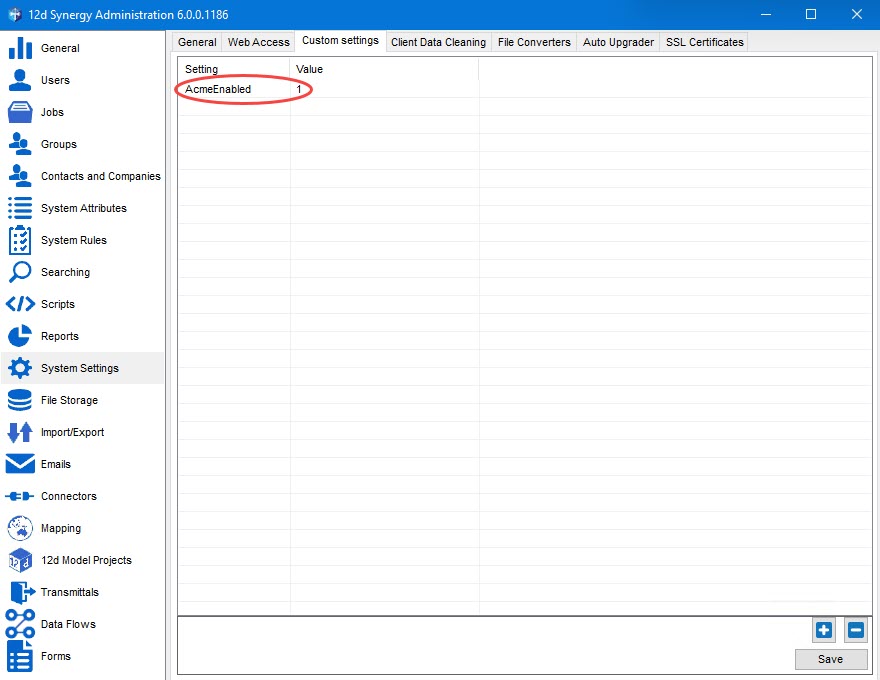
This may move from a custom setting in the future.
Ensure software and hardware firewalls allow access to TCP port 80.
Run the tool at the command prompt using the following command.
12dsCertTool.exe --mode Challenge --config c:\acme\acme.config
If the tool runs successfully, a “Successfully wrote the certificate” message is displayed. If not, review your settings and check your configuration/firewall.Configure 12d Synergy to use the new certificate.
Go to your 12d Synergy Administration application > System Settings tab > SSL Certificates tab > Use an Existing Certificate tab.
Enter the friendly name (from step 2 of this procedure) of the certificate in the Certificate Identifier box.
.jpg)
Similarly, in the 12d Synergy Administration application > System Settings tab > Web Access tab > HTTPS Setup tab, enter the friendly name of the certificate in the Certificate Identifier box.
.jpg)
Restart your 12d Synergy Server.
Going forward, ensure to restart the 12d Synergy Server after the certificate is renewed.
2.0. How to Set Up a Microsoft Task to Run the Tool
12d Synergy recommends setting up a Microsoft Task to run this on a schedule, but ensure it is run under an administrative account.
You should schedule this to occur once per month. Note that the 12d Synergy Server must be restarted to use the new certificate. So, ideally, you should time this to occur just before your regular maintenance task, which is performed from the 12d Synergy Administration application > General tab > Maintenance tab.