Admin Content
You will need to purchase a Signed Certificate from a Certificate Authority(CA) of your choice to complete the procedure below.
A Certificate Authority is a third-party Certificate vendor, such as GoDaddy, Verisign, DigiCert, etc.
Log in to the server on which the certificate has to be installed.
In the 12d Synergy Administration application, select the System Settings tab > SSL Certificates tab > Create via a Certificate Authority tab.
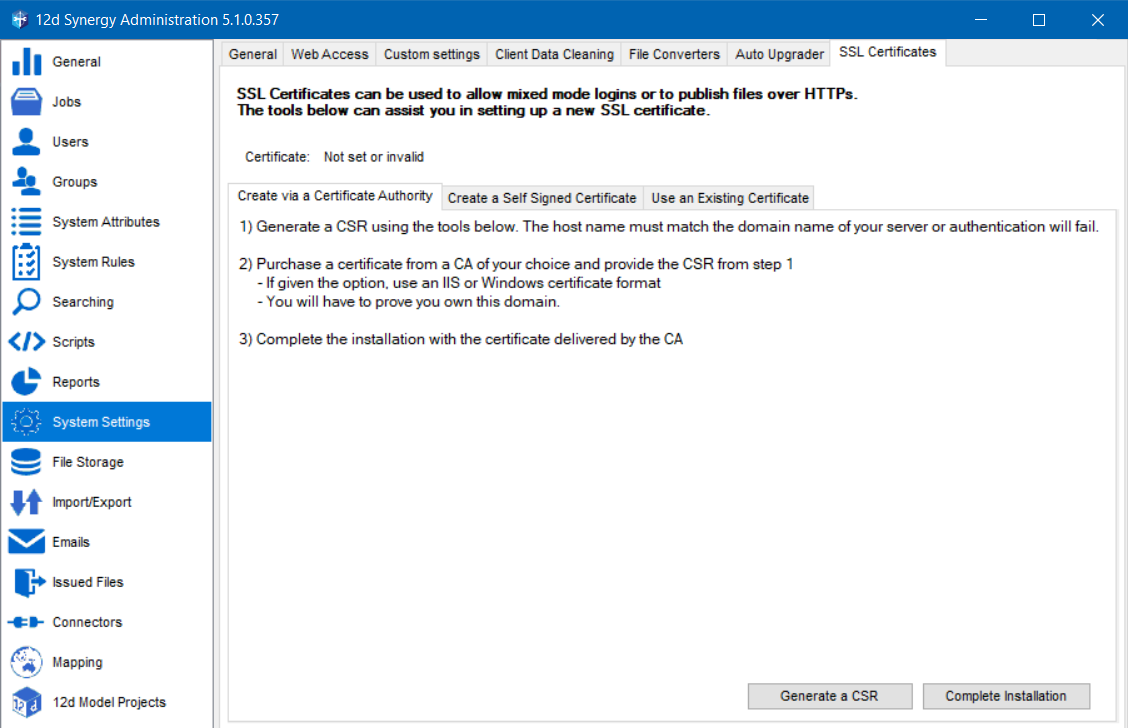
Click the Generate a CSR button.
The Generate a CSR window is displayed.
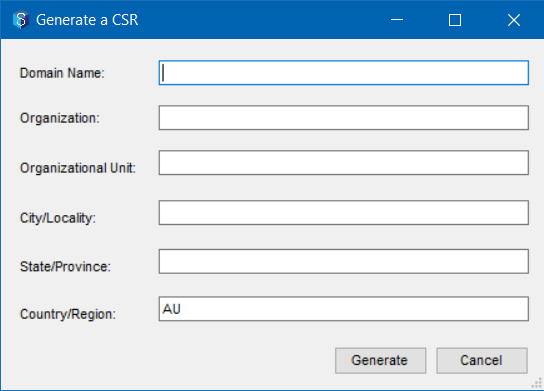
Enter all the details in this window.
Click the Generate button.
The Save your CSR file dialog is displayed.
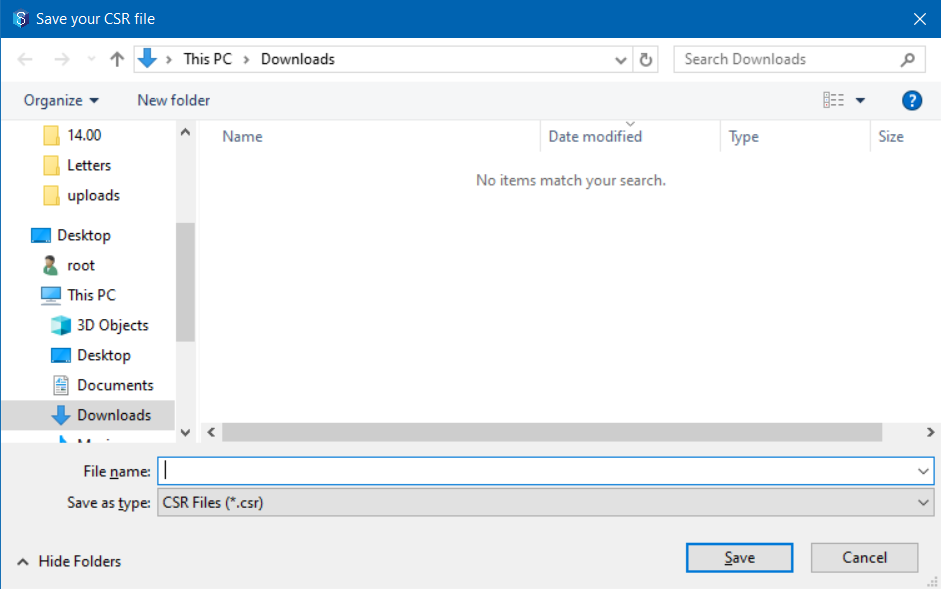
Enter a name for the CSR file you are creating and save it to a location.
Click the Save button.
Purchase a Signed Certificate from a Certificate Authority(CA) of your choice and provide them with the CSR file for converting it into a Signed Certificate.
There is a fee for purchasing a Signed Certificate from a Certificate Authority.
A Certificate Authority is a third-party certificate vendor like Verisign, GoDaddy, DigiCert, etc.
After receiving the Signed Certificate from the CA, go back to the 12d Synergy Administration application.
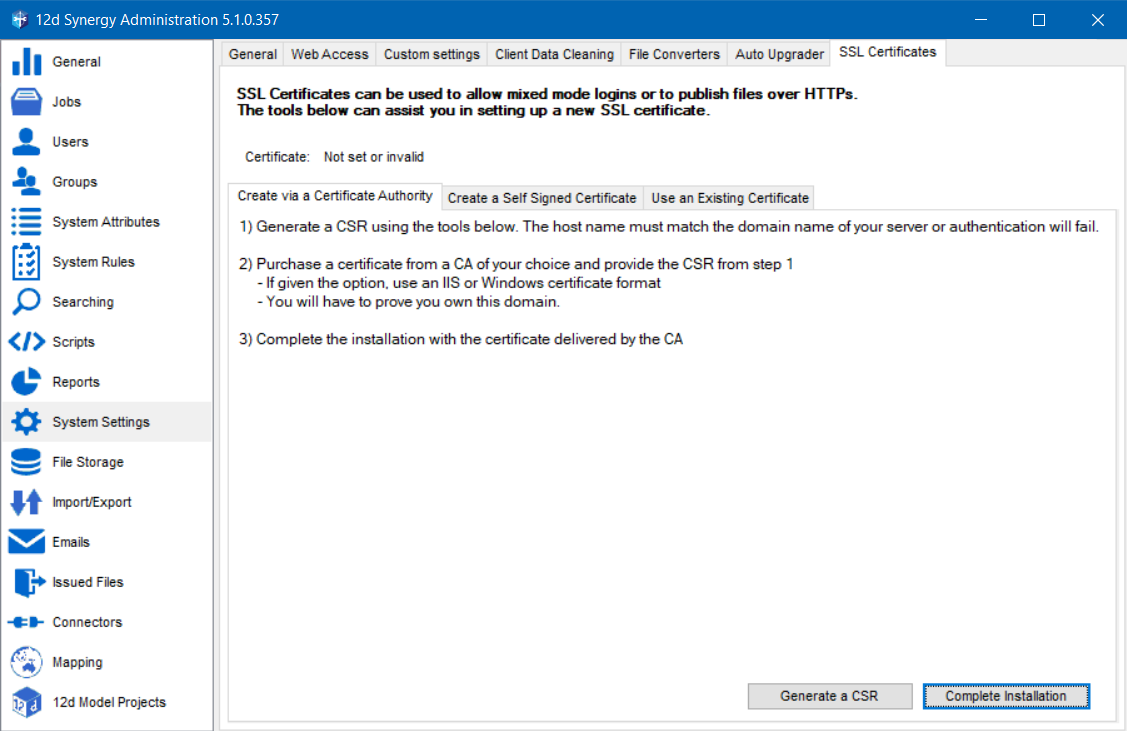
In the System Settings tab > SSL Certificates tab > Create via a Certificate Authority tab, click the Complete Installation button.
In the Certificate Password window, enter a password to export the private key after installation.
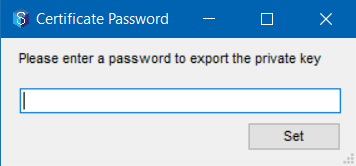
Click the Set button.
The Select the signed certificate dialog is displayed.
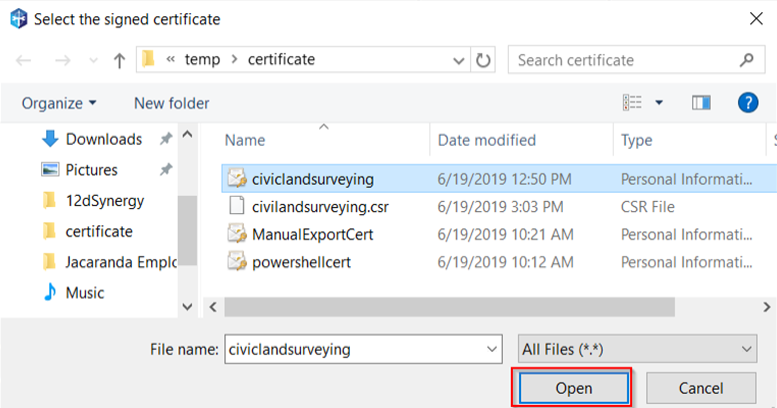
Browse and select the certificate from the CA and click the Open button.
The certificate is installed, and a prompt confirming that installation is displayed. You have to restart the 12d Synergy Server service after installing the certificate.An error message may appear while importing the certificate using the 12d Synergy Administration application if the Service Account does not have access to write to the Certificate Store. You can manually add the certificate by following the procedure mentioned in How to Add a Certificate(s) to Windows.
Do the following to restart the 12d Synergy Server service:
Click the Windows Start button > Run prompt > type services.msc. Alternatively, press the Windows+R keys simultaneously and then type services.msc.
The Services window is displayed.Right-click the 12d Synergy Server service and select the Restart option.
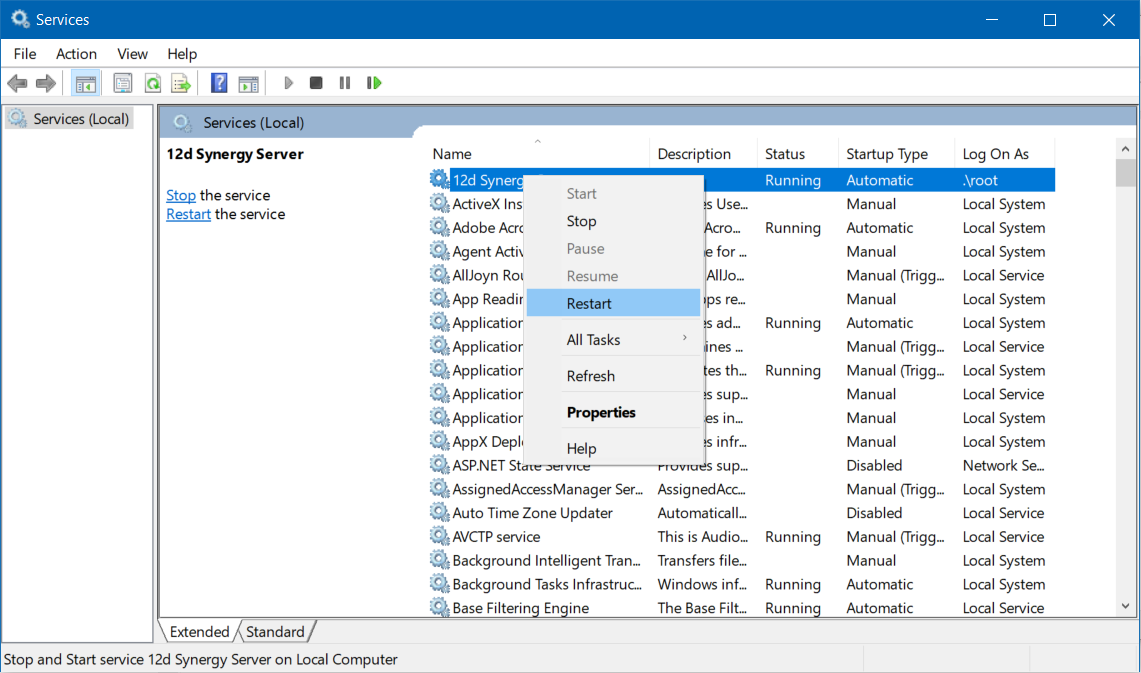
The 12d Synergy Server service is restarted, and the new certificate is loaded.