Admin Content
All processes listed on this page should be performed only under the able guidance of the 12d Synergy Support team.
1. Indexing
12d Synergy uses a search index to help search through your data. Occasionally, you may need to reindex your data if results are incorrect.
It is recommended that you run this process only when advised by the 12d Synergy Support team.
1.1. How to Reindex Data
In the 12d Synergy Administration application, select the General tab > Maintenance tab > 12d Synergy tab.
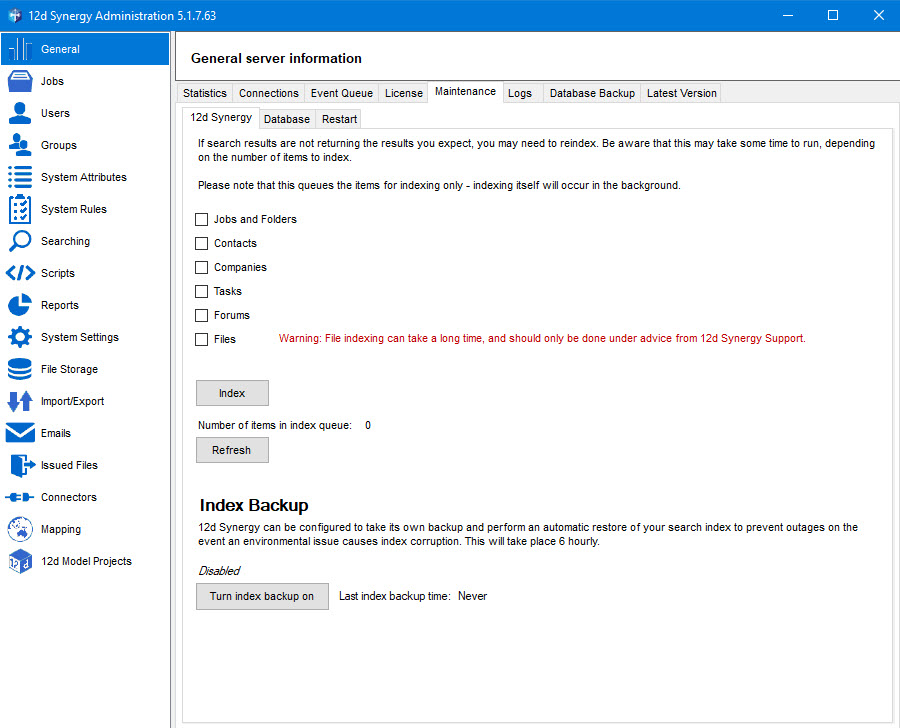
Do any of the following:
To reindex jobs and folders, contacts, companies, tasks, and forums, select the checkboxes next to them.
To reindex files, do the following:
Select the Files checkbox.
You will be prompted for more details.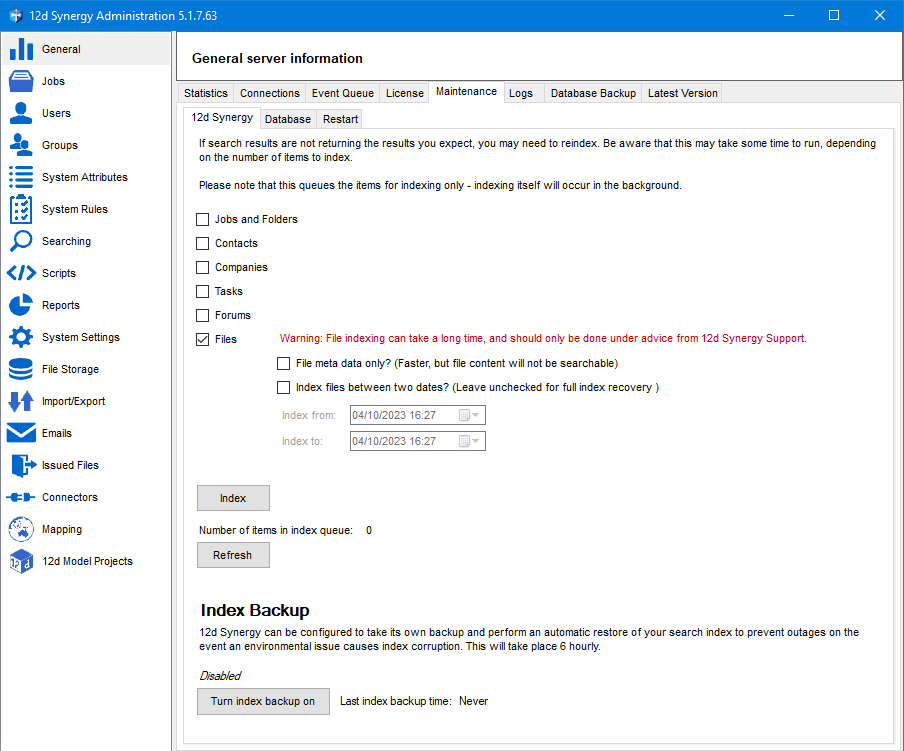
If you want to re-index only the metadata of files, select the File meta data only? (Faster, but file content will not be searchable) checkbox.
If you want to reindex files between two dates, select the Index files between two dates? (Leave unchecked for full index recovery) checkbox.
The date lists are enabled.Select the Index from and Index to dates from the date lists.
Reindexing files can take a very long time because it depends on the number of files in your 12d Synergy system. It is highly recommended that you do this process only when advised by the 12d Synergy Support team.
12d Synergy provides you with an option to back up your search index and restore it every six hours. You can turn on this feature by clicking the Turn index backup on button in the Index Backup section. If the feature is enabled, an Enabled tag is displayed above the Turn index backup on button. The time when the last backup of the index was taken is displayed against the Last index backup label.

Click the Index button.
The selected data entities are re-indexed.
2. Tuning
Database tuning is the process of optimising the performance of a database system. If you notice your database performance lagging, you can tune it using the 12d Synergy Administration application.
2.1. How to Tune your Database with 12d Synergy
In the 12d Synergy Administration application, select the General tab > Maintenance tab > Database tab.
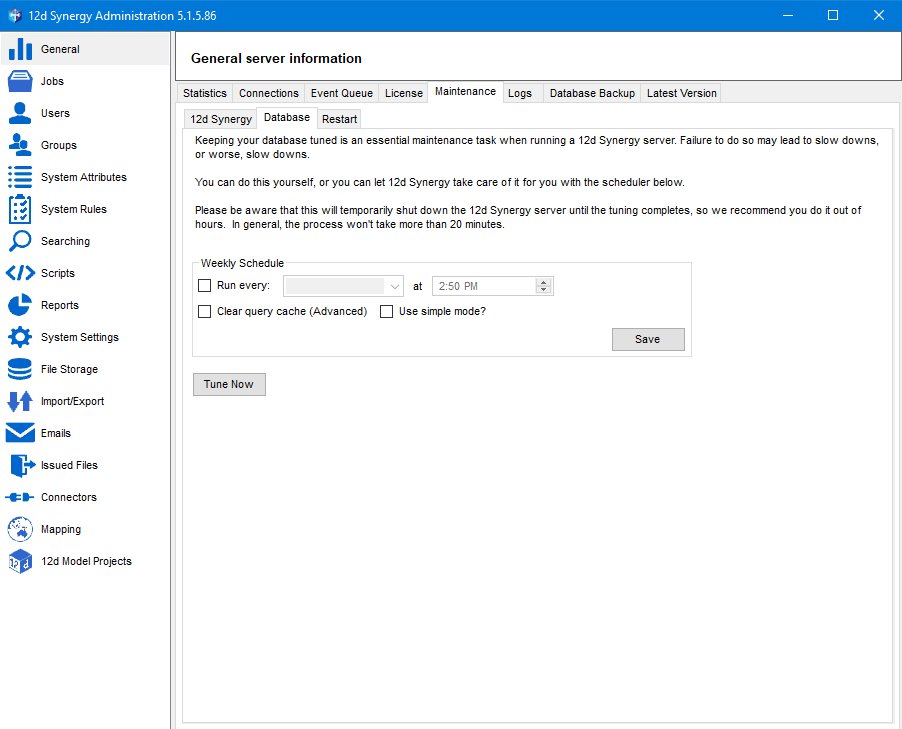
Do one of the following:
To tune the database immediately, click the Tune Now button.
The tuning process will run immediately.To schedule the database tuning for a specific day and time, select the Run every: check box in the Weekly Schedule section and click the Save button.
If you have scheduled the tuning process, it will run at the set frequency and time.The below-mentioned tuning settings are displayed in the Weekly Schedule section, and they apply to the tuning process that is run either instantly or at a scheduled time.
Clear Queue Cache - If selected, this setting clears the query results from the query cache and creates faster and optimal query results.
Use Simple Mode - If selected, this setting rebuilds all the indexes again. If not selected, based on how much fragmentation has occurred in the indexes of the database, it will decide whether to reorganise the indexes or rebuild them
However, these settings have to be made under the guidance of a database specialist or the 12d Synergy Support team.
Tuning restarts the server. When a server restarts, all running file transfers are terminated and the connected users are disconnected from the 12d Synergy applications. Hence, restart the 12d Synergy Server cautiously.
3. Restarting the 12d Synergy Server

Sometimes, when the 12d Synergy applications are stuck, or the database is not responding, you might want to restart the 12d Synergy Server. You can do so using the Restart button in the 12d Synergy Administration application > General tab > Maintenance tab > Restart tab.
When you restart the server, all running file transfers are terminated, and the connected users are disconnected from the 12d Synergy applications. Hence, restart the 12d Synergy Server cautiously.
4. Logs
The 12d Synergy Server application provides logging mechanisms to help understand and investigate the issues that may arise with your 12d Synergy service.
4.1. Server Error Logs
The server error log captures all transactional details of 12d Synergy applications. These details can be used for troubleshooting purposes. You can choose to download a current log or all available historical logs.
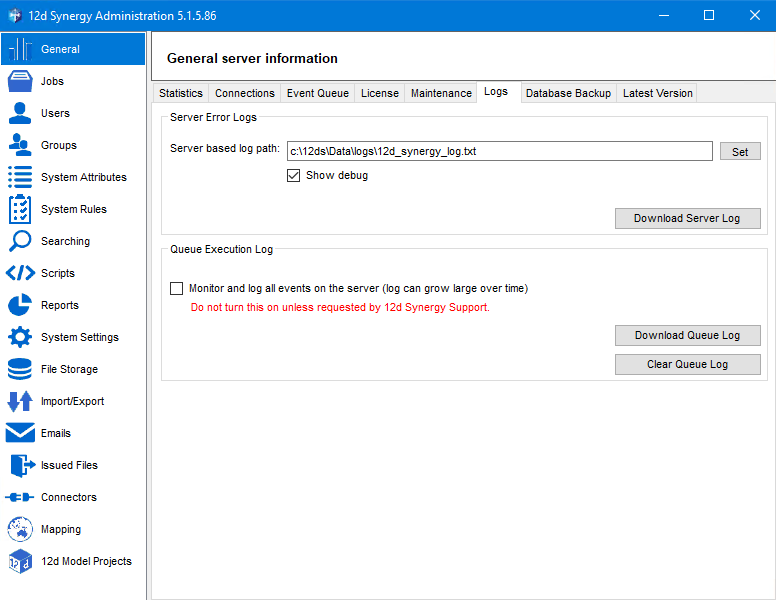
In the 12d Synergy Administration application > General tab > Logs tab, Server Error Logs section, enter the path on the server (including the name of the log file) in the Server based log path box. For example, such as c:\12dSynergy\log.txt.
Any log file that is created is saved at this location on the server machine. However, in 12d Synergy version 6, to make these files more accessible, you have the option to save them on the system where the 12d Synergy Administration application is running.Click the Set button to set the entered location as the default folder on the server for saving log files.
Select the Show debug checkbox to capture additional login details in the server error log file.
It is recommended to select this checkbox, as it provides more details to investigate issues.
Click the Download Server Log button.
The following prompt is displayed.
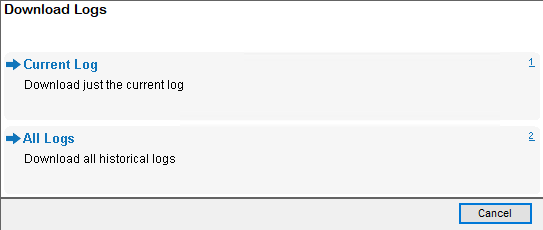
Select one of the following log options for download:
Current log - This option downloads the current log file, which contains the most recent transactions that occurred on the server. Once the size of this file reaches 20 MB, it becomes a historical log, which will then be captured using the All available logs option. The latest transactional details will then be captured in a new file, which becomes the current log file.
All available logs v6 feature - This option downloads a zip file containing 10 historical log files, each file being 20 MB in size. When the current log file reaches 20 MB, it overwrites the latest historical file. All existing historical files move down one position, and the oldest file (previously the 10th file) is deleted.
The Save log file prompt is displayed.
Select a location on your system for saving a copy of the selected log file(s) and enter a name for this file in the File name box. If you have selected the All available logs option, each file is named with the file name suffixed by a number from 1 to 10, in chronological order. For example, log1.txt, log2.txt, etc.
Click the Save button.
The log file(s) is/are saved at the server location mentioned in the Server based log path box as well as the location selected in the Save log file prompt.
4.2. Queue Execution Log
The process below should only be turned ON when advised by the 12d Synergy Support team.
A queue execution log records additional details of events that occur in the 12d Synergy applications. These details are very helpful to the 12d Synergy Support team when investigating an issue. This log is generally generated on demand, as it can become a large file if generated over a long period.
In the 12d Synergy Administration application > General tab > Logs tab, select the Monitor and log all events on the server (log can grow large over time) check box to start generating the queue execution log file.
This is generally done under the supervision of the 12d Synergy Support team.
Click the Download Queue Log button to download the log file to an accessible location on your system (the system running the 12d Synergy Administration application).
The Clear Queue Log button helps to clear the previously generated queue execution log file and start a new one when the Monitor and log all events on the server (log can grow large over time)check box is selected the next time.