---
title: "Introduction to Files"
slug: "introductiontofiles"
tags: ["file references", "properties of a file", "convert files", "file history", "Search for a file", "Web Link of the file", "lock a file", "move a file", "copy a file", "add a file"]
updated: 2026-11-11T05:28:43Z
published: 2026-11-11T05:28:43Z
canonical: "help.12dsynergy.com/introductiontofiles"
---
> ## Documentation Index
> Fetch the complete documentation index at: https://help.12dsynergy.com/llms.txt
> Use this file to discover all available pages before exploring further.
# Introduction to Files
Admin Content
12d Synergy supports files of all types and helps you manage all your files in a safe and traceable environment.
> [!NOTE]
> If you are logged in as a [Collaborator](/v1/docs/collaborators), you will only have read-only access to the files of selected jobs or folders. Please contact your 12d Synergy Administrator for more details.
### 1.1. How to Open a File
1. In the **12d Synergy Client** application, browse the jobs and folders to the location of the required file.
2. Do one of the following:
- Double-click the file to open the file in the default program that is used to view files of that extension type.
- Right-click the file and choose the **Open** option to open the file in the default program that is used to view files of that extension type.
- Right-click the file and choose the **Open with** option to open the file in any one of the selected compatible programs for files of that extension type. The selected file is opened.
> [!WARNING]
> It is recommended that you do NOT open a 12d Synergy file from your workspace unless you are working with [Managed Folders](/v1/docs/v5managed-folders). Doing so can cause potential errors.
### 1.2. How to View a File
You can view the entire file in read-only mode by selecting the file and clicking the **View**  icon button in the quick access toolbar. 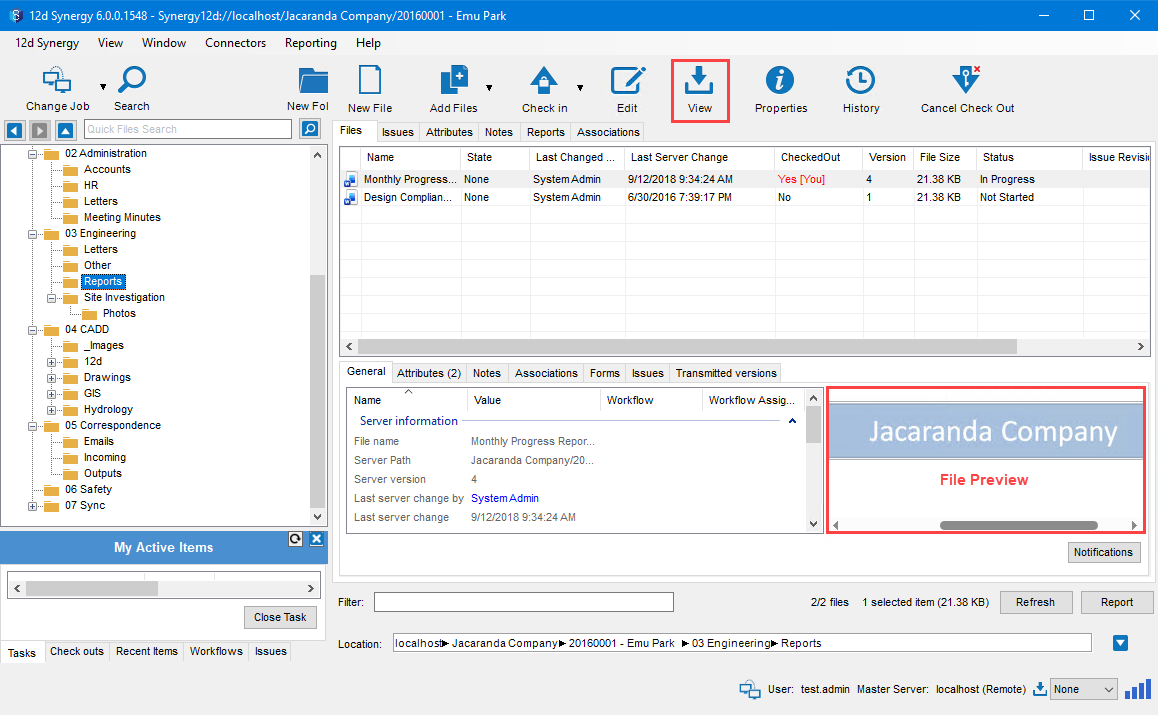
Alternatively, you can view a preview of a selected file on the **12d Synergy Client** application dashboard. Based on the type of file you select, the size of the preview varies.
| Type of file selected | Preview |
| --- | --- |
| PDF | First page |
| .doc or .docx | First 20 paragraphs |
| .xls or .xlsx | First 100 rows and A-Z columns |
Did you know?
You can press the Ctrl key and double-click the left mouse button to view the entire file in read-only mode.
### 1.3. How to View Information About a File

When you select a file in the **Files** tab of the **12d Synergy Client** homepage, you can see many details about the file in the different columns of the selected file row. Details such as when the file was last checked out or checked in, who edited it, who created it, file size, file version, etc., are displayed.
The panel below, as shown in the above image, displays more details categorised in tabs such as **Attributes**, **Notes**, **Forms**, **Associations**, and **Issues**. Only the tabs relevant to the selected files are displayed. The same details are also displayed in the **File Details** window.
- Click the **Properties**  icon on the quick access toolbar to view the **File Details** window.
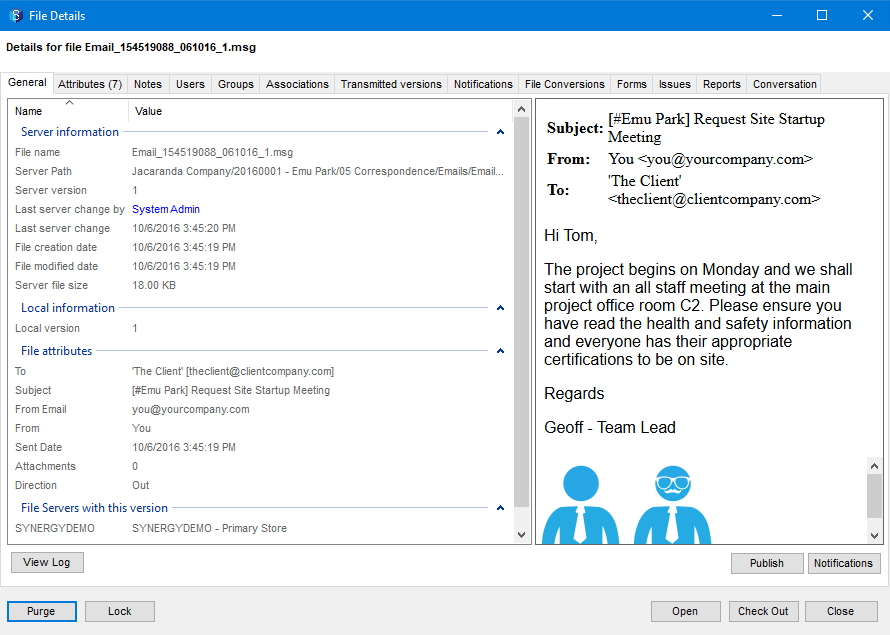
The information is categorised under the following tabs:
- **General** – This tab displays basic file details, such as the server it is stored on, server details, and file creation and modification information.
- **Attributes** – This tab displays all the attributes applied to the file and their values.
- [**Notes**](https://help.12dsynergy.com/docs/v5notesdoc) – This tab displays the notes that the file users have added about this file.
- [**Users**](https://help.12dsynergy.com/docs/users) – This tab displays the users who have worked on the file and the permissions applied to their profiles. You can also modify or update their permissions from this tab. For more details on permissions, please refer to [**Permissions**](https://help.12dsynergy.com/docs/permissionsdoc).
- [**Groups**](https://help.12dsynergy.com/docs/v5groups) – If the users of the selected file are part of any defined group, you can view the permissions applied to that group(s). You can also modify or update its permissions from this tab. For more details about group permissions, please refer to the relevant section in [**Permissions**](https://help.12dsynergy.com/docs/permissionsdoc).
- [**Associations**](https://help.12dsynergy.com/docs/addingassociationsdoc) – If the selected file has associations, you can view them here.
- [**Transmitted Versions**](https://help.12dsynergy.com/docs/issuing-1doc) – If the file is part of a transmitted data set, the details of the transmitted files are displayed.
- [**Notifications**](https://help.12dsynergy.com/docs/v5notifications) – If any notification subscriptions are set for this file, you can view them in this tab.
- **File Conversions** – If a [file conversion](https://help.12dsynergy.com/docs/fileconversionsdoc) rule has been set on the file, you can view the details of the conversion in this tab.
- **References** – If this file is referenced by or from another file, you can view the details of the reference in this tab.
- **Conversations** – If the selected file is an email, then you can see the conversations around this file in this tab.
- [**Forms**](/v1/docs/forms-1) — If this file is subject to any forms, they are displayed.
- [**Issues**](/v1/docs/issue-tracker) — If any issues have been raised on this file, they are displayed
- [**Reports**](/v1/docs/reports) — A list of the reports that can be generated on this file is displayed.
> [!NOTE]
> - Based on the selected file type, the tabs displayed in the **File details** window change. These match the tabs displayed on the home page of the **12d Synergy Client** application when the file is selected.
Did you know?
Pressing the Spacebar key when a file is selected also displays the File Details window.