One entity can be associated with other entities within the system, such as files, folders, tasks, and jobs. This is an easy way to say that one entity is related to another within 12d Synergy. It can also explain how they are related to each other.
12d Synergy creates automatic associations between certain files. For example, an association between an MS Word file and a PDF produced from it. Another example is when you save an attachment from an email using the 12d Synergy plugin in MS Outlook, it associates it with the original email.
You can manually add the following entities as associations to other entities (except contacts).
Jobs
Folders
Companies
Files
Tasks
Contacts
12d Model Projects
Issues
You cannot associate a managed folder with any entity. However, you can associate files within a managed folder with an entity if required.
1.1. How to Add Associations to Entities
You need the necessary administrative rights to add associations.
When viewing a project entity like a task, file, folder, company, 12d Model project or job, click the Associations tab.
Click the
 button.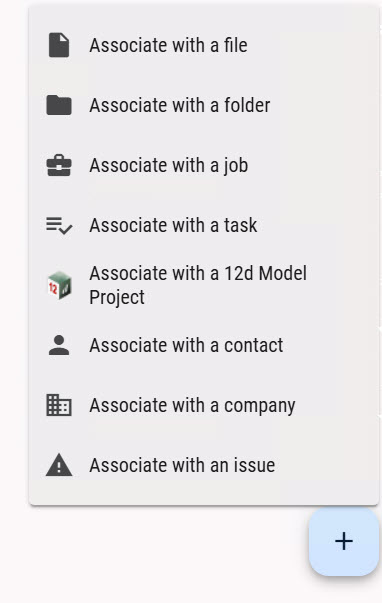
Select one of the following options.
Associate with a file – to select a file as an association
Associate with a folder – to select a folder as an association
Associate with a job – to select a job as an association
Associate with a task – to select a task as an association
Associate with a 12d Model project – to select a contact as an association
Associate with a contact – to select a contact as an association
Associate with a company – to select a company as an association
Associate with an issue — to select an issue as an association
The entity you are viewing is associated with the entity in the option chosen from the above list.
Say you are viewing a job, and you have associated it with a company and a 12d model project. When you view the Association tab of that job, you will see the two associations there.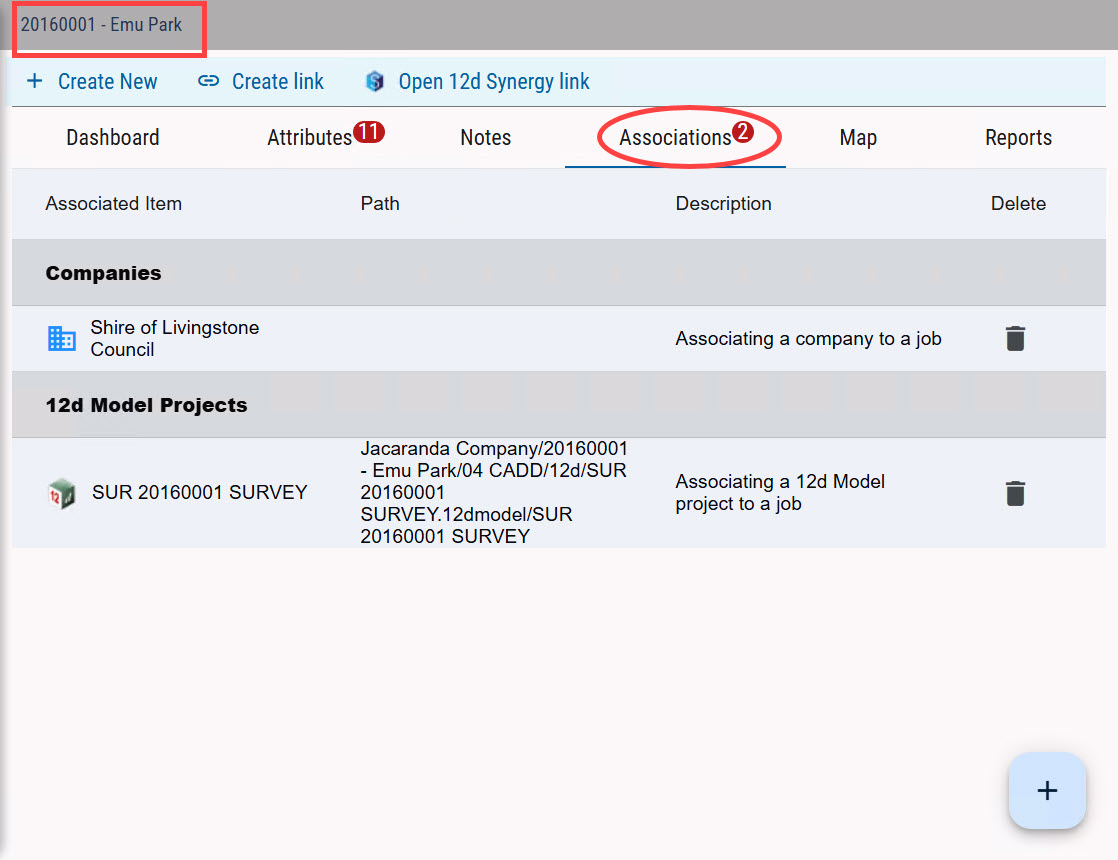
You can click on any of the associated entities to see a detailed view of that entity. For instance, click the associated 12d Model project to see the 12d Model project view.