Below are some important notes on upgrading to 12d Synergy Version 6. For details of the new features and improvements in this release, see the 12d Synergy Version 6 Release Notes.
1. Prerequisites
1.1.1. License File
The 12d Synergy v6 Server requires a new license. You will not be able to upgrade the server without an appropriate license.
1.1.2. Upgrade Path
To upgrade to 12d Synergy v6, you must already be using 12d Synergy v5. Please refer to the Upgrade Notes for v5 that is attached below.
Ensure you read the v6 System Requirements document first, as the requirements have changed. Enterprise users can read the Enterprise Edition of the v6 System Requirements.
1.1.3. Check Outs
Please ensure that no files, managed folders, or 12d Model projects are checked out before beginning this upgrade. It may result in data loss.
1.1.4. Scripts
Due to the changes introduced in v6, Scripted Reports, Tasks and Events may need to be recompiled before they can be used. If these were supplied by 12d Synergy Pty Ltd., then please contact us via our Support Portal or drop an email to support@12dsynergy.com.
1.1.5. Workspaces
Please note that upgrading to 12d Synergy v6 will create a new local database, which may require data to be re-downloaded when accessing the applications for the first time. Where possible, you should consider deleting the workspace.
2. Upgrade Process
2.1. Server Upgrade
Stop the 12d Synergy Server service.
Uninstall the 12d Synergy Server application from Programs and Features.
Run the upgrader that was supplied to you or download it from http://www.12dsynergy.com/downloads.
When prompted, provide your v6 license file.
Check the Windows Event Viewer or your file logs for any errors after the Server connection is restored.
Due to necessary changes, scripted reports, tasks, or events may need to be recompiled and updated via the 12d Synergy Administration application before you use them.
If these were provided by 12d Synergy Pty Ltd., please contact support via the Support Portal or drop an email to support@12dsynergy.com.If your firewall settings for v5 were set up using a program path rather than port exceptions, make sure you add the new executable to your firewall rules.
2.2. Client Upgrade
2.2.1. Upgrading Manually
You can choose to upgrade all 12d Synergy Client applications on each machine manually or by using your own install script.
2.2.2. Upgrading via the Auto Upgrader
It is possible to fully upgrade all user computers by using the Auto Upgrader. However, you must first manually upgrade your 12d Synergy Administration application to access the Server.
Once they are upgraded, access the 12d Synergy Administration application > System Settings > Auto Upgrader and specify the executables to use for the upgrade.
2.2.3. Running v5 and v6 side-by-side
Note that you will be allowed to operate 12d Synergy Client applications of v4, v5 and v6 side-by-side. This will support customers who may need to communicate with v4, v5 and v6 Servers.
As a result, upgrading to v6 will not automatically remove the earlier versions of 12d Synergy. If you no longer need v4, please uninstall it manually.
Please be aware that there are some conditions around using plugins with multiple server versions.
2.3. File Replication Server(FRS) Upgrade
This upgrade is applicable to 12d Synergy File Replication Server application users only.
Stop the 12d Synergy File Replication Server.
Uninstall the 12d Synergy File Replication Server application from Programs and Features.
Run the 12d Synergy File Replication Server - Upgrader that was supplied to you or download it from http://www.12dsynergy.com/downloads.
Check the Windows Event Viewer or your file logs for any errors after the File Replication Server connection is restored.
If your firewall settings for v5 were set up using a program path rather than port exceptions, make sure you add the new executable to your firewall rules.
3. 12d Model
To work with multiple 12d Synergy Client application versions and 12d model, you should always use the 12d Synergy Client application to open 12d Model projects to ensure the correct 12d Synergy version is used.
4. CAD
As CAD often needs to be started manually to load the required customisation, it can operate when multiple versions (v4, v5 and v6) of 12d Synergy applications are installed.
CAD auto-detects the 12d Synergy version based on:
the version of the 12d Synergy application used to access the DWG if the DWG is accessed from the 12d Synergy Client application.
the version of the Server, based on the location of the DWG.
an optional setting to force the product version, set from the 12d Synergy ribbon in the 12d Synergy Client application.
Please note that for this to work successfully, the last version of the product installed must be v6 and a single session of CAD must be referenced only by one server and one version of the server. A difference in servers or their versions requires a restart of the CAD application.
5. MS Office
5.1. MS Word and MS Excel
MS Word and MS Excel can operate when multiple versions (v4, v5 and v6) of 12d Synergy applications are installed. The version of 12d Synergy application that is used is determined by:
the 12d Synergy version used to access the file, if the file is accessed from the 12d Synergy Client application.
the version of the server, based on the location of the file.
an optional setting to force the product version, set from the 12d Synergy ribbon in the 12d Synergy Client application.
5.1.1. Compatibility Mode
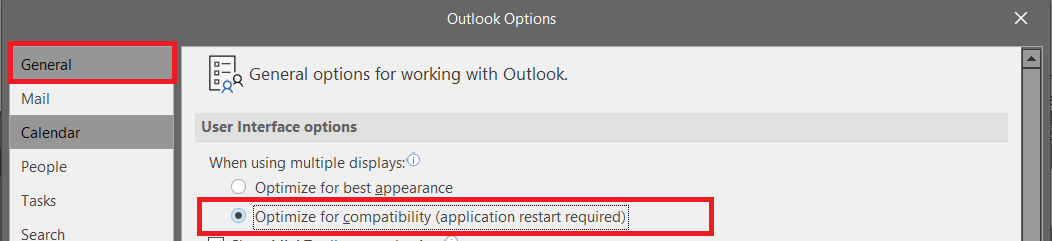
In some versions of MS Word and MS Excel, particularly when scaling has been used across multiple monitors, some windows may not render correctly. In this instance, these applications may need to be switched to Optimize for Compatibility mode in the MS Word (or MS Excel) > File > Options > General tab.
.png)
5.2. MS Outlook
5.2.1. Running Previous Version of 12d Synergy Side by Side
MS Outlook can also operate when multiple versions (v4, v5 and v6) of 12d Synergy applications are installed. However, in this case, the version is determined by selecting a version through the Settings option on the 12d Synergy ribbon in the 12d Synergy Client application. Changing this setting requires a restart of MS Outlook.
Please note that for this to work successfully, the last version of the 12d Synergy product installed must be v5 and a single session of MS Office (MS Word, MS Excel, or MS Outlook) should reference only one server and one version of the server. Changing servers or versions of servers requires a restart of the MS Office product.
5.2.2. Compatibility Mode
In some versions of Outlook, particularly when scaling has been used across multiple monitors, some windows may not render correctly. In this instance, Outlook may need to be switched to Optimize for Compatibility mode in the MS Outlook > File > Options > General tab.
5.3. 64-bit
V6 now only offers a 64-bit version. As a result, you must upgrade MS Office to use the 64-bit version before the 12d Synergy plugins will work.
6. Update the Single-Sign-On Application in MS Azure
This upgrade is applicable only if you are using Single Sign On authentication.
In the Application Registrations page > <name of your SSO application> page > Redirected URIs link > Add URI link > Single-page application > Redirect URIs section, you need to add another Redirect URI, namely https://MySynergyserver.MyCompany.Com/auth-callback..png)
7. Update Microsoft 365 Integration Setup
This upgrade is applicable only if you have Single- or Multi-Tenancy set up for working collaboratively with Microsoft 365.
7.1. Single-Tenancy Update
In the Application Registrations page > <name of your Single Tenancy application> page > Redirected URIs link > Add URI link > Single-page application > Redirect URIs section, you need to add another Redirect URI, namely https://MySynergyserver.MyCompany.Com/popup-callback.html. 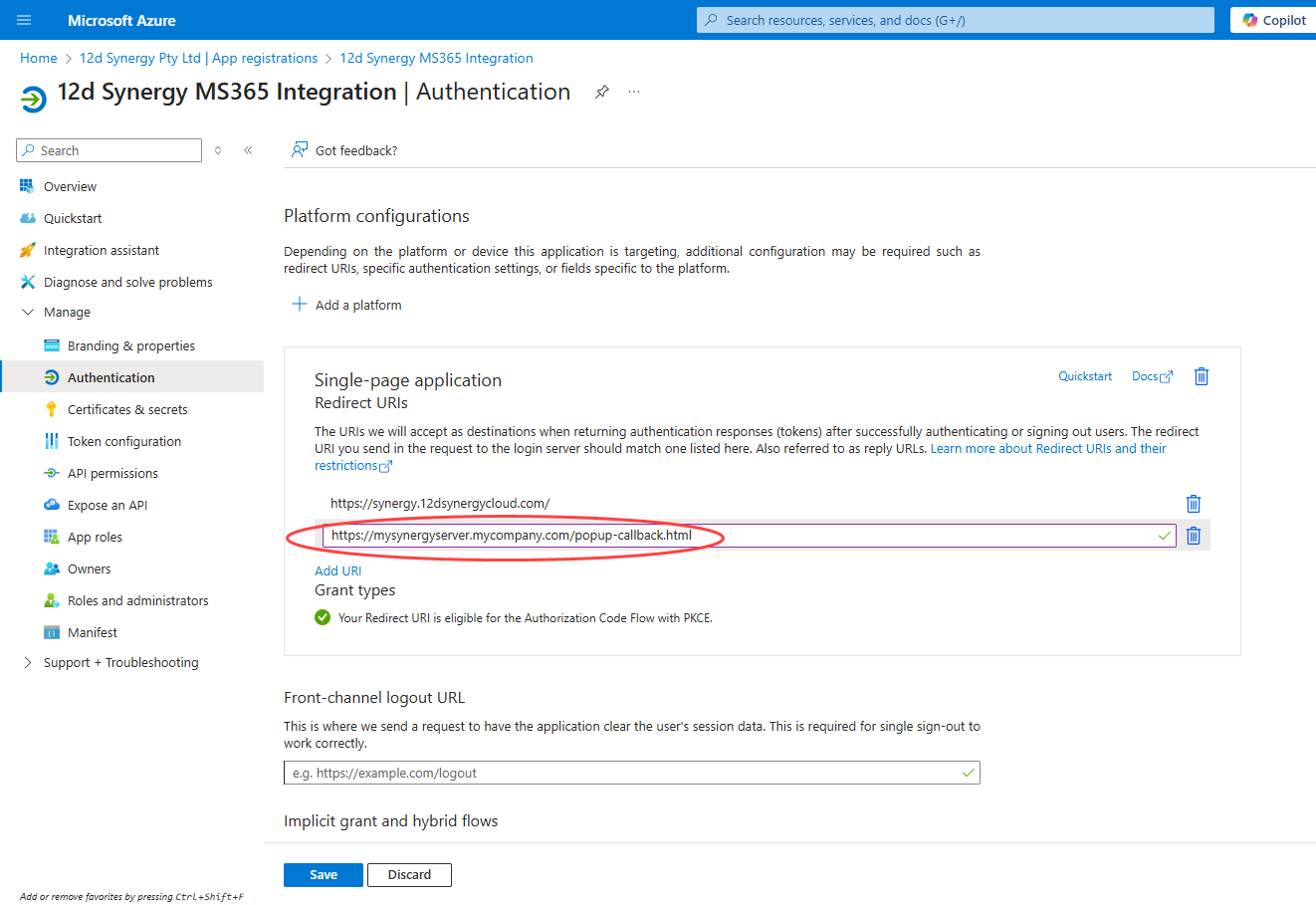
7.2. Multi-Tenancy Update
In the Application Registrations page > <name of your Multi Tenancy application> page > Redirected URIs link > Add URI link > Single-page application > Redirect URIs section, you need to add another Redirect URI, namely https://MySynergyserver.MyCompany.Com/popup-callback.html.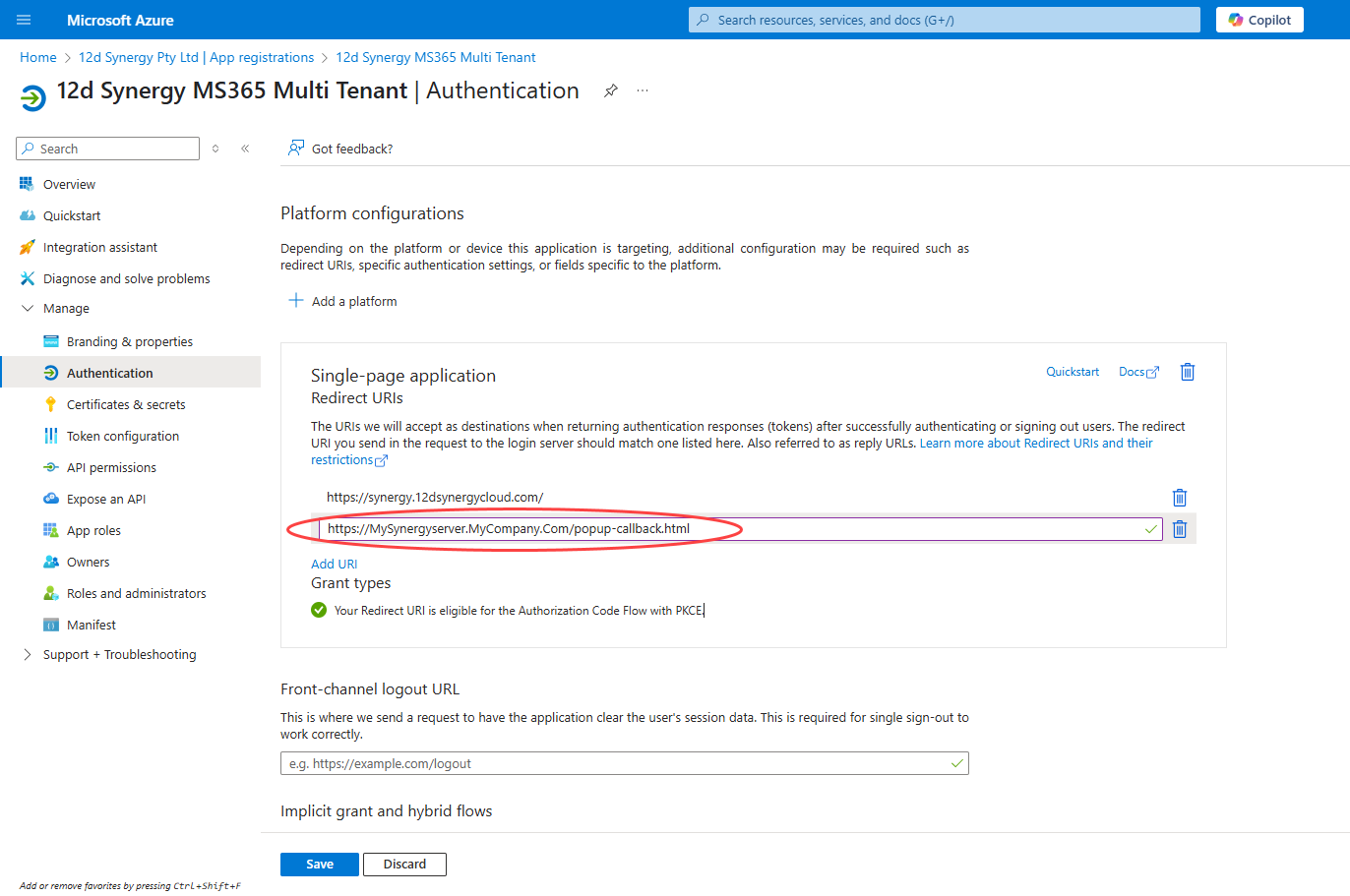
8. Accessing New Features from the 12d Synergy Client Application
We strongly recommend using an HTTPS certificate to protect your data in transit.
If you are operating a self-hosted server that is within your corporate network, you may not be able to access the server using the external facing web address. This is due to the infrastructure requirements outside the scope of 12d Synergy as an application.
If you are hosting 12d Synergy yourself, and your server exists within your network, you may need to do one of the following:
Set up an internal DNS Server to resolve your external address/domain name to your internal server
Enable NAT Loopback on your router/firewall – Consult your vendor/manufacturer for more information.
You may need to discuss with your internal IT team for more information/assistance.
If you do not make this configuration change, you may be unable to access the Web and the new features when you are within your network.